

Why daily
Intent is a rolling 14-day window: someone researching your keywords shows up for about two weeks, then drops out if you haven’t exported them. Every intent lane is checked every day, for free, so there’s something new to look at most mornings. A daily or weekly export means you don’t miss anyone.The five-minute check
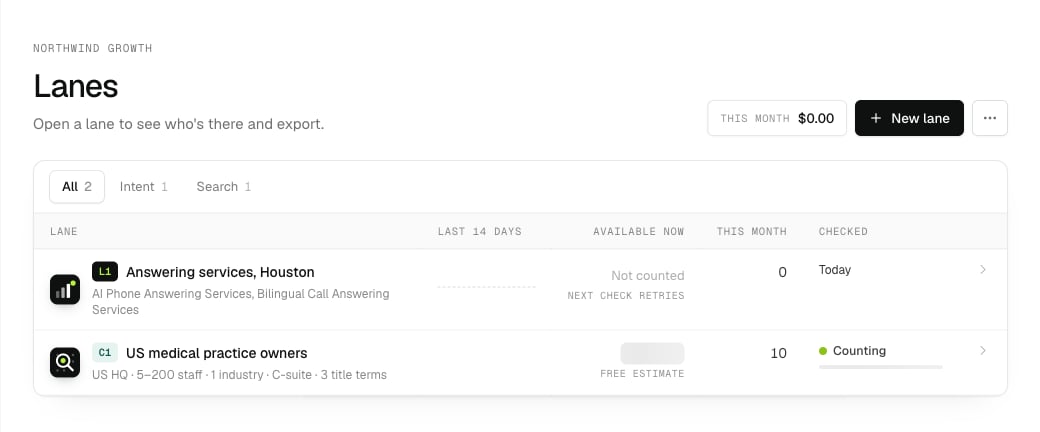
Each morning: what's available now in each lane.
- On Lanes, look at Available now and the last 14 days for each lane. A lane that suddenly grows or shrinks is worth a look.
- Open a lane. New for you, available now is what an export would draw from. The date under the title says how fresh the data is.
- Once a week, open the Keywords tab and act on anything flagged Very broad or No signal yet. See Choose keywords that work.
Export only what’s new
Every export brings only people you haven’t had before, so a daily export never repeats itself:- Intent leads are charged once per billing month, across all your lanes and websites. Someone two lanes both find, or who’s still there tomorrow, isn’t exported or charged again that month. Next month, someone with fresh research can come back; their lead is marked Seen Before, so you can update the record instead of adding a duplicate.
- Search results are charged once, ever.
- Each export takes the strongest research first. Export from all intent lanes on the Lanes page runs one export across every intent lane, with each person once.
Get leads into your tools
Pick the route that fits how you work. You can mix them.CSV
Leads → Recent exports → CSV, or Download CSV for everyone shown. Import it into your CRM or sequencer.
API
Run an export, then pull
GET /api/v1/leads?since=last with a consumer per tool, so each gets every lead once.CLI
One line in a scheduled job quotes, exports, waits and saves the CSV.
AI agent (MCP)
“Export 50 new people from L1 and give me the CSV.” Your agent quotes first.
--max caps how many people (and so what you spend) each run. Each person counts once a month, so running it daily never pays twice for the same person.
Exports are pull-only: nothing is bought unless you, your code or your agent asks for it. Webhooks push removal requests and website visitors as they happen, but never buy anyone.
lead_id (to match removal requests later) and person_id (the same person across months and lanes, for deduping). See Lead fields.
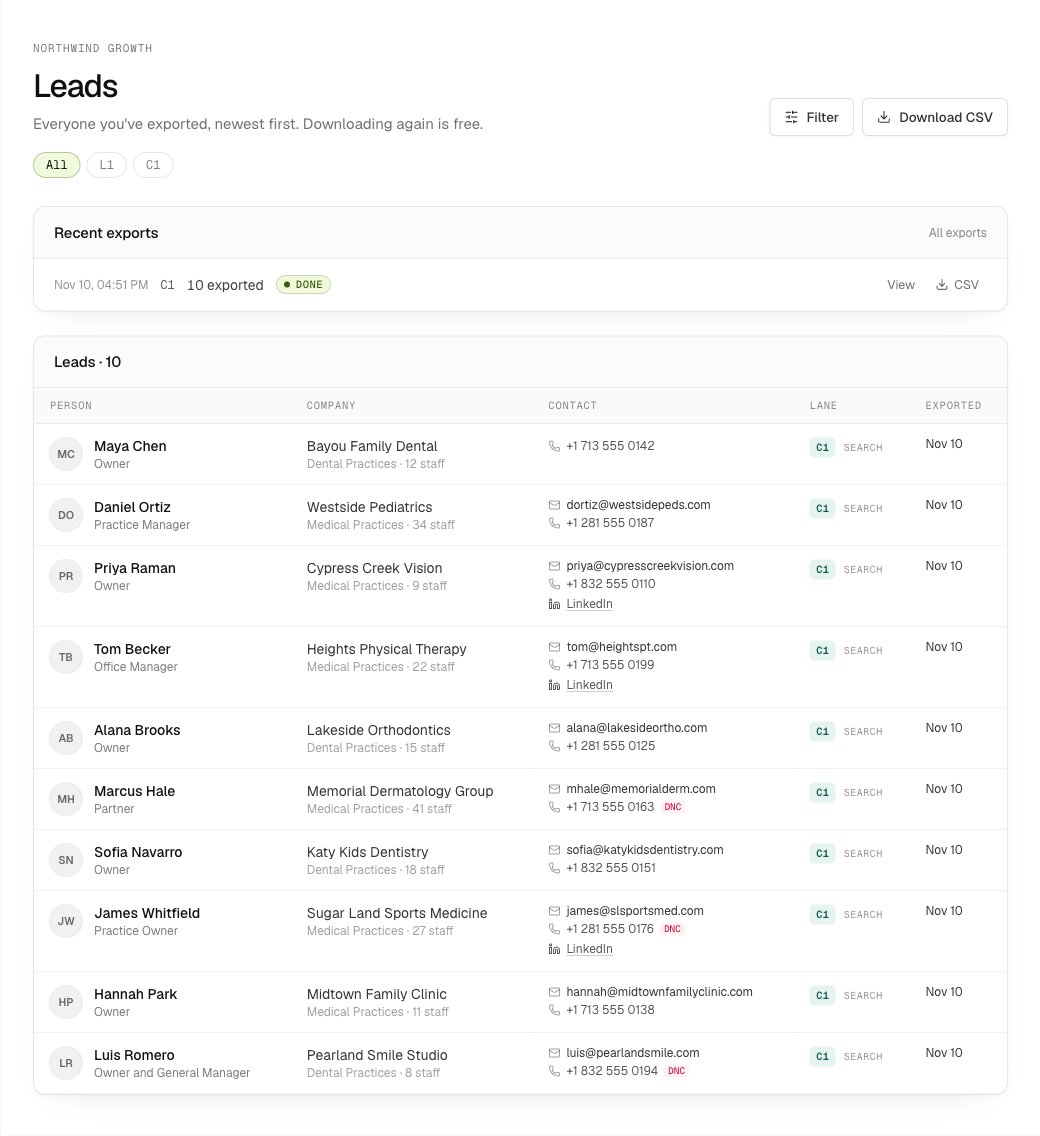
Leads: every export, with View and CSV.
Reach out while the research is fresh
- Go soon. The research behind a lead is from the last two weeks. The sooner you reach out after an export, the more likely they’re still looking.
- Strongest first. Sort by
intent_strength(high, medium, low) orintent_score, and start at the top. - Use what they researched.
keywords_matchedsays which of your keywords each person matched. Write about that problem. Don’t tell people you saw their research, and never mention a website visit. - Check the dates.
first_seenandlast_activeshow when the research started and when it was last seen.
Keep your lists clean
- Removal requests: when someone asks to be removed, you have 10 business days to delete them from your systems. Check Removal requests weekly, or add a webhook so they arrive on their own.
- Do not contact: add customers, competitors and anyone who opts out with you, so they’re never exported again. See Leaving out companies and people.
- Do-not-call flags: each mobile carries its own flag (
mobile_on_dnc, and one per number inmobiles). Calling, texting and emailing rules are yours to follow; see the terms.
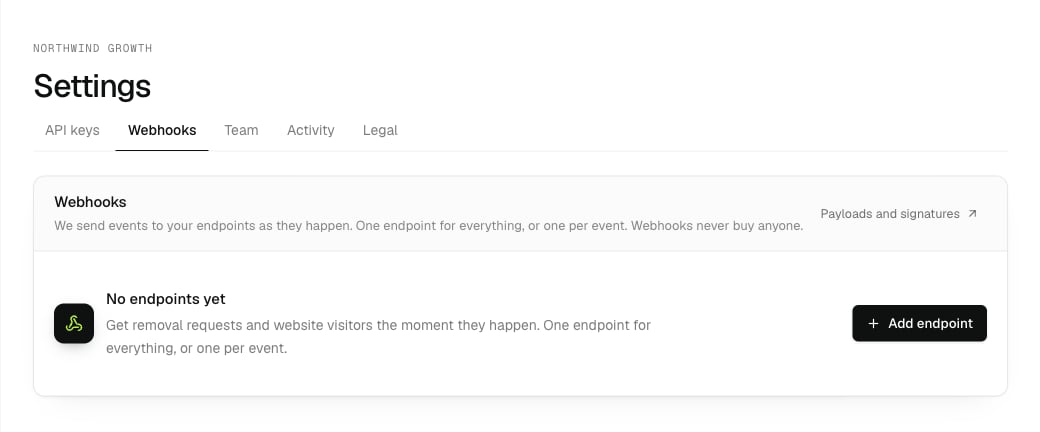
Settings → Webhooks: send removal requests straight to your CRM.