Pick what your buyers research, narrow it to the people you sell to, check the free count and export your first leads.
At the end of this guide you’ll have an intent lane that’s checked every day for free, a count of who’s researching your keywords right now, and your first leads in a CSV.The example is a call-answering company looking for Houston offices that need an answering service. Swap in your own market as you go.
Building a lane, counts and samples are free on any account. You need a balance to export, and to request keywords we don’t track yet. See Billing.
1
Start a lane and say who you sell to
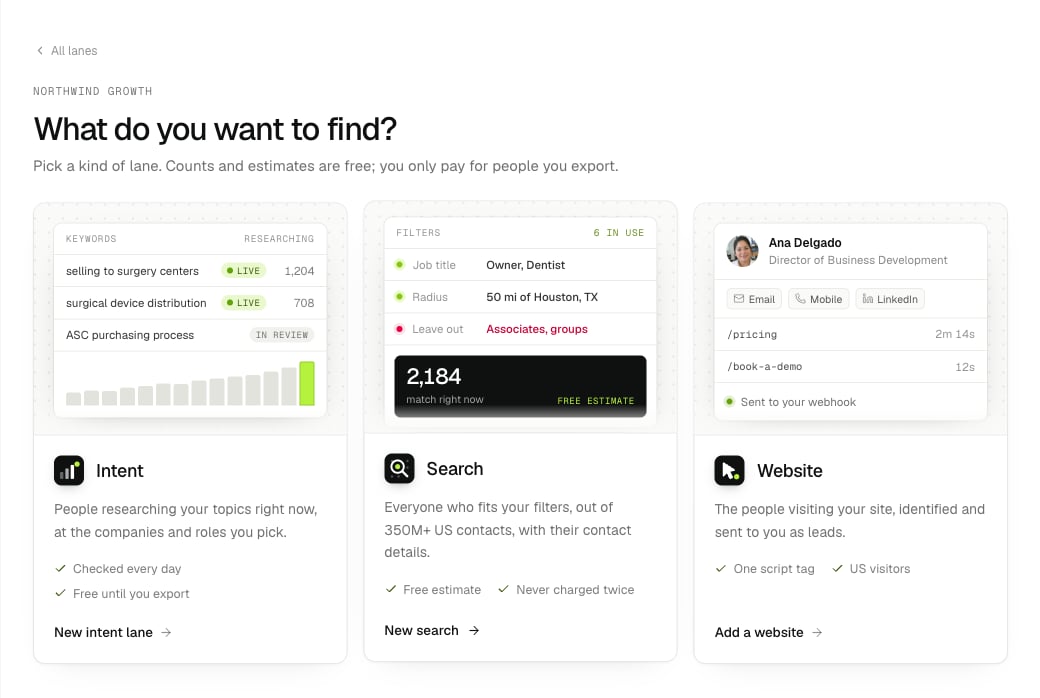
On Lanes, press New lane and pick Intent. Or press ⌘K and choose New intent lane.
Pick Intent. Search and Website start from the same page.
Give the lane a Name you’ll recognise in a list, like “Answering services, Houston”. Then describe Who you sell to in a sentence or two:
Houston offices looking for an answering service or a virtual receptionist.
This isn’t a filter. It drives the keyword suggestions in the next step, and guides any new keywords you request.
2
Pick the keywords your buyers research
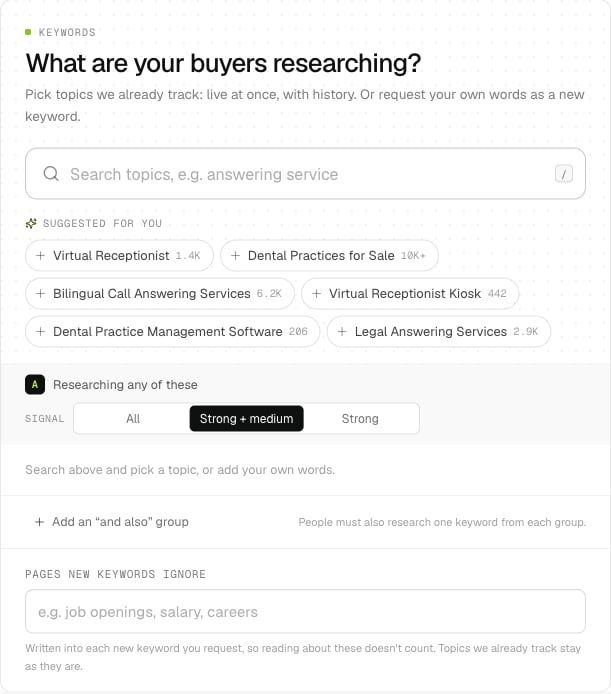
The big search asks What are your buyers researching? Under it, Suggested for you already lists topics that fit what you wrote. Click one to add it.
Suggestions come from Who you sell to.
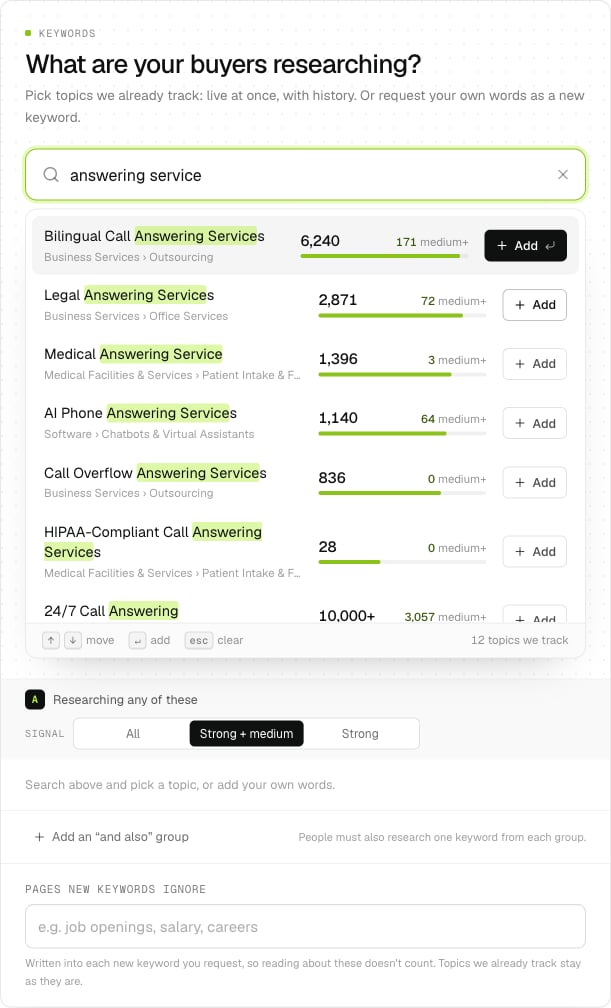
Or type a few words, like “answering service”. Results appear as you type: topics we already track, each with:
how many people researched it on the latest day,
how many of them did so at medium or strong signal (medium+),
a bar to compare its size with the others.
Results as you type. Use ↑ ↓ to move and Enter to add.
Press Add, or use ↑ ↓ and Enter. Press / anywhere on the page to jump back to the search. Once you’ve picked a few, More like your keywords suggests related topics.Topics we already track are live straight away, with history, so the lane can count people at once. If nothing fits, the last row offers Request ”…” as a new keyword. A new keyword takes about a day to approve, then 2 to 4 days before people show up, and requesting one needs a balance.
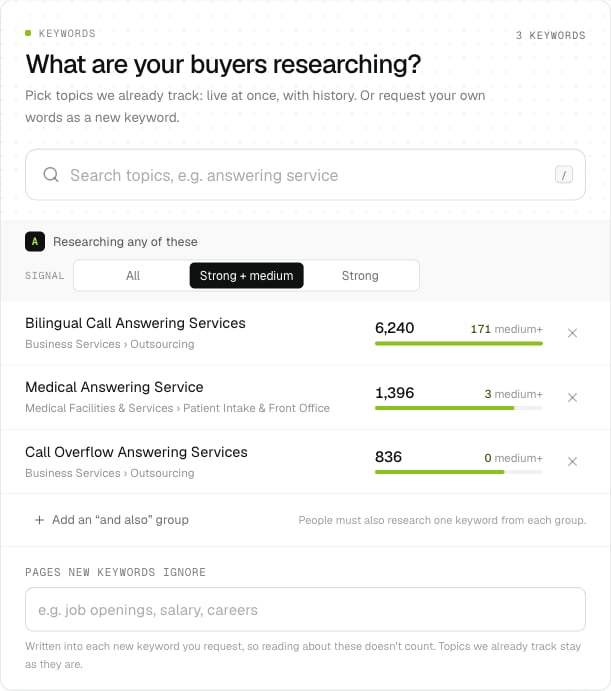
Your keywords sit in group A, Researching any of these. Its Signal setting decides how strong someone’s research has to be before they count:
Signal
Who counts
Strong + medium
The default, and what we recommend: it leaves out light reading.
Strong
The fewest people, with the strongest research.
All
The most people. New keywords start out mostly light.
Three topics in group A, at Strong + medium.
To require a second interest, press Add an “and also” group: people must then also research one keyword from each group. You can skip this for your first lane. See Keyword groups.
4
Add filters
Below the keywords, filters narrow who counts. Click a row to open it:
Job and career: job titles (and titles to leave out), seniority, department, years of experience, past titles and employers, schools and headline.
Company: target accounts, industry, words in the company’s description, NAICS and SIC codes, size, revenue, company name, HQ location, and US-headquartered companies only, which is on to start with.
Location: a radius around a ZIP code or city, or the state, city or ZIP code where the person lives.
Each person must have: a mobile, a mobile not on do-not-call lists, a business email (or one checked as valid), a personal email, a direct phone or a LinkedIn profile.
Advanced: AND / OR groups: any of 40+ more fields, for anything the sections above don’t cover.
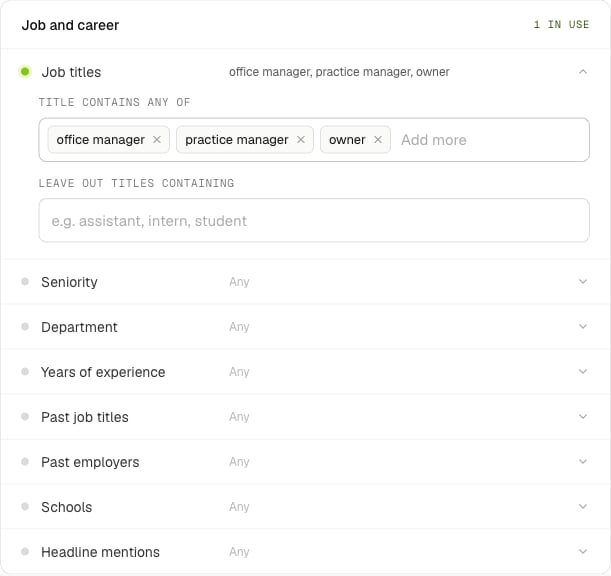
For the example: job titles containing “office manager”, “practice manager” or “owner”, a 50-mile radius around Houston, TX, and a mobile.
Open a row to set it. A green dot means the filter is in use.
Every filter cuts the count, so start with the few that matter most. Target the right people walks through each one.
5
Check the summary
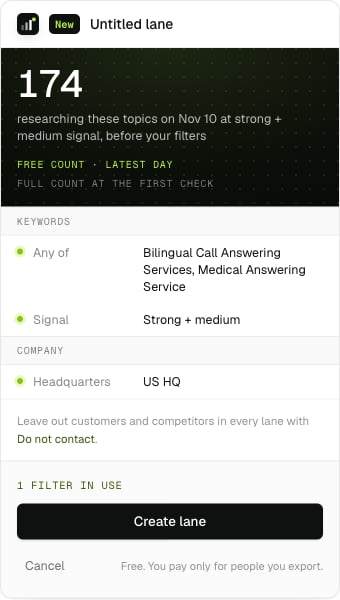
The panel on the right shows the lane as you build it, in plain words. The number on top is a free count: how many people researched your group A topics on the latest day, at your signal, before your filters.
A free one-day count, then every setting in plain words.
Use it to compare choices as you go. The lane’s real numbers come from its first check, which covers the last 14 days and applies every filter.
6
Create the lane
Press Create lane. It’s free: you pay only for people you export.The first check starts by itself within a few minutes and usually takes a few minutes more. After that, the lane is checked every day. If you requested new keywords, the lane starts counting once they’re live.
7
Read the lane page
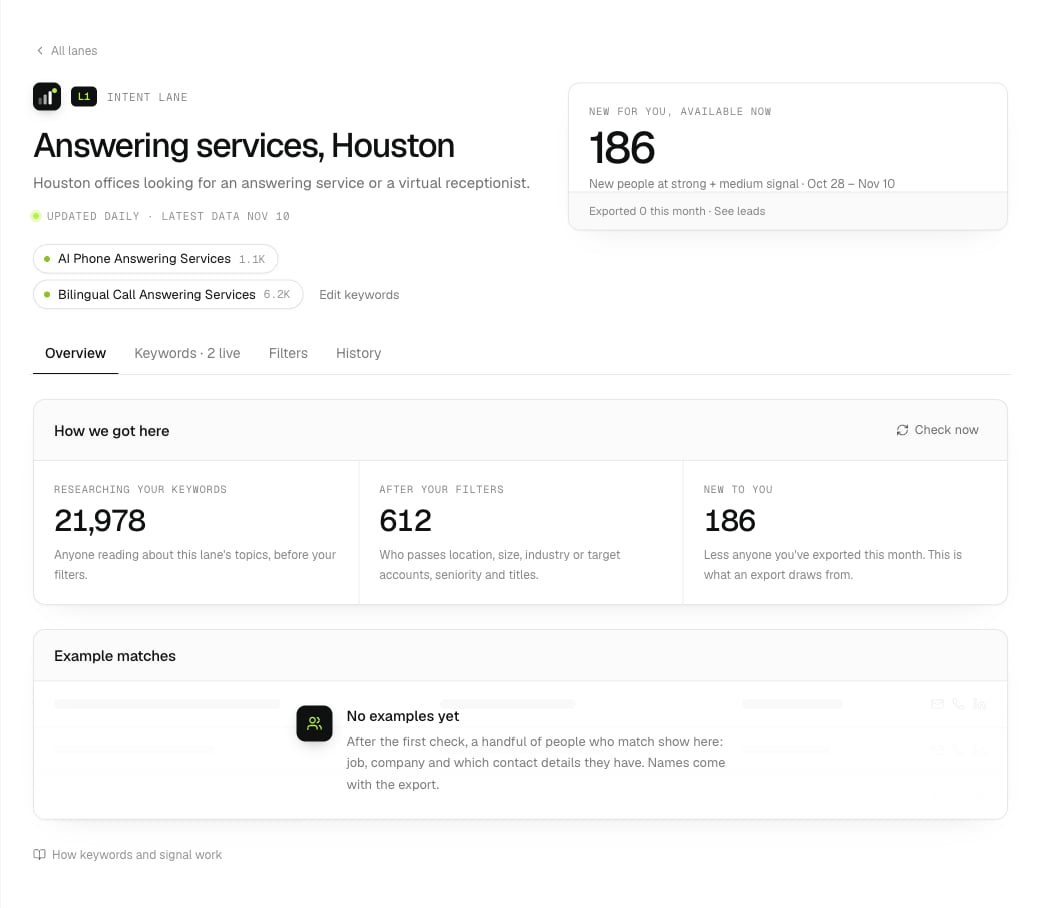
The lane page: keywords under the title, what's new for you on the right, and how the count narrows.
Under the title: the lane’s keywords with their size today, and the date of the latest data.
New for you, available now: people you could export right now at your signal, from the last 14 days, less anyone you’ve exported this month.
Overview: How we got here shows three numbers: researching your keywords, after your filters, and new to you. Example matches shows a few people who match, without names. Check now runs a fresh check, for free.
Keywords: each keyword’s signal today, flagged when it’s Very broad or has No signal yet. Add, replace or remove keywords here.
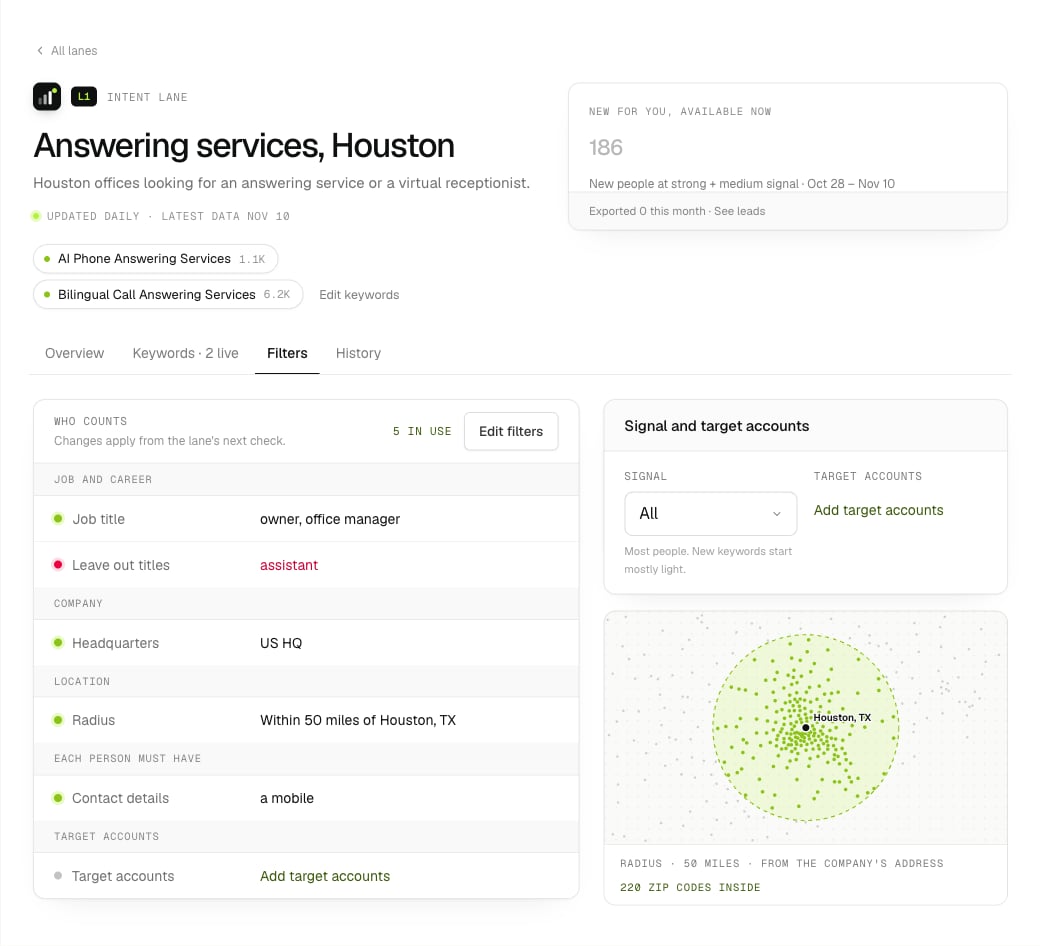
Filters: everything that decides who counts, the signal setting, how your target accounts apply, and your radius on a map.
History: one bar for each daily check, and the full funnel, filter by filter.
The Filters tab, with the radius on a map.
If “after your filters” is much smaller than “researching your keywords”, one filter is probably doing most of the cutting. The full funnel on History shows which.
8
Export
In the New for you card, type how many people you want. The button shows the price as you type, like Export 100 for $10.00. That’s a free quote: press the button to buy.
You get the strongest research first, and only people you haven’t exported this month.
If your balance is short, Add $X and export N tops it up and brings you back.
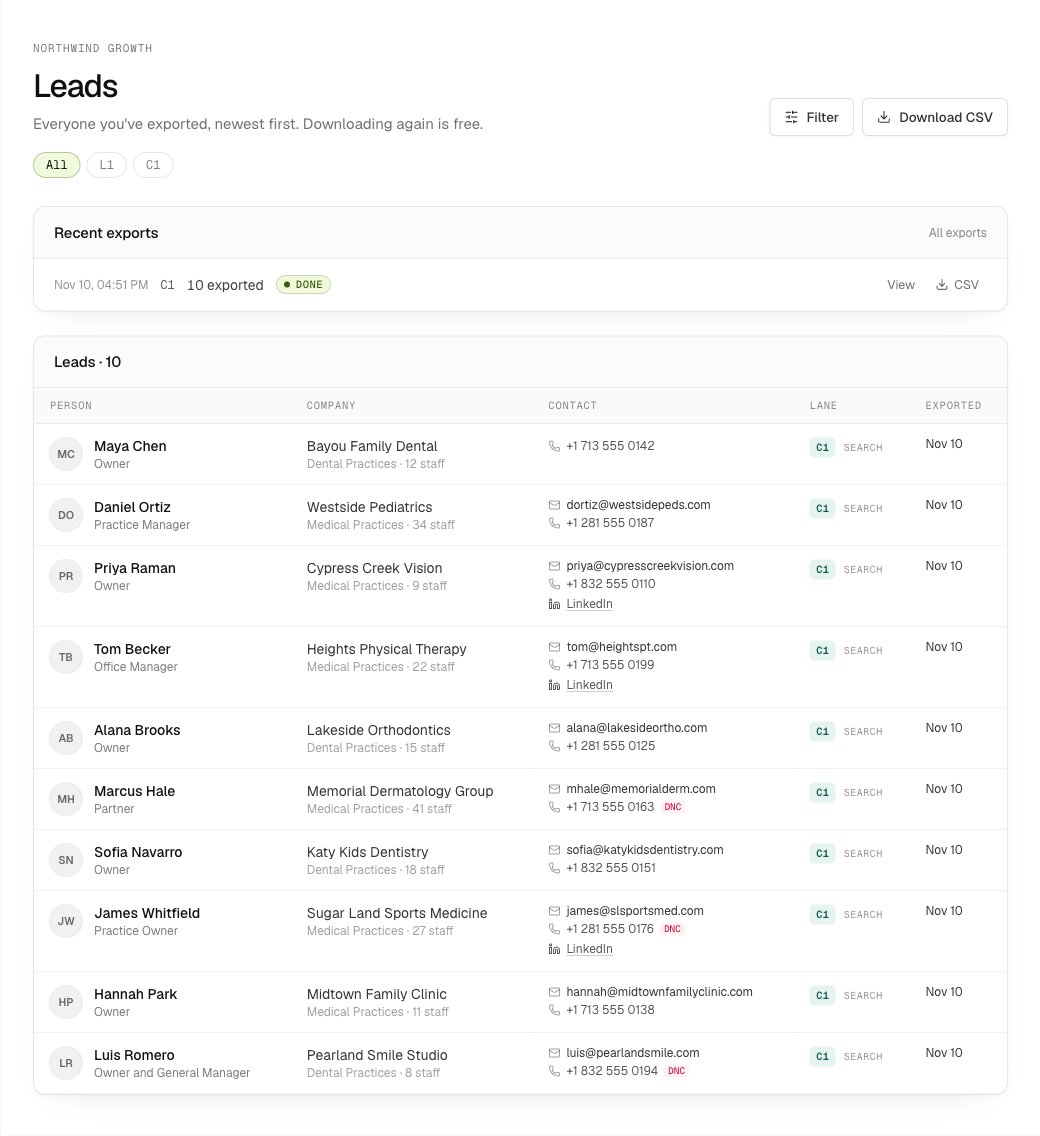
An export takes a few minutes. Follow it in Leads, then press CSV next to it under Recent exports.
Leads: your exports and everyone in them. Downloading again is free.
Read the numbers, use “and also” groups and act on warnings.
Target the right people
Titles or seniority, size, radius, target accounts and must-haves.
A daily routine
Export what’s new and reach out while the research is fresh.
Build a list with Search
Everyone who fits, whether they’re researching or not.
{"docsConfig":{"theme":"mint","$schema":"https://mintlify.com/docs.json","name":"Intent Leads","description":"B2B intent leads: people researching what you sell this week, with business emails, phones and LinkedIn. Dashboard, REST API, CLI and MCP.","colors":{"primary":"#5E8C0F","light":"#B5F23D","dark":"#5E8C0F"},"logo":{"light":"https://mintcdn.com/intentleads/16GfXNJlPs26aspr/logo/light.svg?fit=max\u0026auto=format\u0026n=16GfXNJlPs26aspr\u0026q=85\u0026s=7bb6e53db6fb91e6a3436904538f33af","dark":"https://mintcdn.com/intentleads/16GfXNJlPs26aspr/logo/dark.svg?fit=max\u0026auto=format\u0026n=16GfXNJlPs26aspr\u0026q=85\u0026s=ee1b9cbb31f2daef4d4238be856e7414","href":"https://intentleads.si"},"favicon":"https://mintcdn.com/intentleads/16GfXNJlPs26aspr/favicon.svg?fit=max\u0026auto=format\u0026n=16GfXNJlPs26aspr\u0026q=85\u0026s=ce7f30343f2c0ac51ac9c53cf045a1fd","api":{"openapi":"api-reference/openapi.json","playground":{"display":"interactive"},"examples":{"languages":["curl","javascript","python"]}},"appearance":{"default":"light"},"background":{"color":{"light":"#FFFFFF","dark":"#07090A"}},"navbar":{"links":[{"href":"https://intentleads.si","label":"Website"},{"href":"mailto:support@intentleads.si","label":"Support"}],"primary":{"type":"button","label":"Dashboard","href":"https://intentleads.si/dash"}},"footer":{"socials":{"website":"https://intentleads.si"},"links":[{"header":"Intent Leads","items":[{"label":"Website","href":"https://intentleads.si"},{"label":"Pricing","href":"https://intentleads.si/pricing"},{"label":"Dashboard","href":"https://intentleads.si/dash"},{"label":"Terms","href":"https://intentleads.si/terms"},{"label":"Guides","href":"https://intentleads.si/guides"},{"label":"About","href":"https://intentleads.si/about"}]},{"header":"Docs","items":[{"label":"Get started","href":"/get-started/first-intent-lane"},{"label":"FAQ","href":"/faq"},{"label":"API quickstart","href":"/quickstart"},{"label":"API reference","href":"/api-reference/introduction"},{"label":"CLI","href":"/cli"},{"label":"MCP","href":"/mcp-setup"}]}]},"search":{"prompt":"Search the Intent Leads docs"},"seo":{"metatags":{"og:site_name":"Intent Leads"}},"icons":{"library":"lucide"},"styling":{"eyebrows":"breadcrumbs","codeblocks":{"theme":{"light":"github-light","dark":"github-dark"}},"latex":true},"contextual":{"options":["copy","view","chatgpt","claude","cursor"],"display":"toc"},"navigation":{"pages":[]}},"deployment":{"deploymentMetadataValue":{"subdomain":"intentleads","hasAudioNarration":false,"actualSubdomain":"intentleads","customDomains":["docs.intentleads.si"],"gitSource":{"type":"github","owner":"dropoutsanta","repo":"intentleads-docs","deployBranch":"main","contentDirectory":"","isPrivate":true,"mountPath":"","label":""},"entitlements":{},"buildId":"6af76867cc23cd287336fa6b","clientVersion":"0.0.4143","searchFilterCounts":[{"language":"default","tag":"API reference","count":97},{"language":"default","tag":"Endpoints","count":96},{"language":"default","tag":"Guides","count":29},{"language":"default","tag":"Workspaces","count":19},{"language":"default","tag":"Webhooks","count":13},{"language":"default","tag":"How it works","count":9},{"language":"default","tag":"Billing","count":9},{"language":"default","tag":"Exclusions","count":9},{"language":"default","tag":"Lanes","count":7},{"language":"default","tag":"Get started","count":5}]},"assistantConfig":{"enableAskAiButton":false,"enableStarterQuestions":false,"enableContextualStarterQuestions":false,"enableAskAiSearchBar":true},"basePath":"","hasChatPermissions":false,"hasWebMcpPermissions":false,"toggles":[{"name":"kill-isr","enabled":true,"variant":{"name":"disabled","enabled":false,"feature_enabled":true},"impressionData":false},{"name":"custom-rbac-roles","enabled":true,"variant":{"name":"disabled","enabled":false,"feature_enabled":true},"impressionData":false},{"name":"agent-mintlify-slack","enabled":true,"variant":{"name":"disabled","enabled":false,"feature_enabled":true},"impressionData":false},{"name":"agent-integrations-settings","enabled":true,"variant":{"name":"disabled","enabled":false,"feature_enabled":true},"impressionData":false},{"name":"rbac-expansion","enabled":true,"variant":{"name":"disabled","enabled":false,"feature_enabled":true},"impressionData":false},{"name":"automations-pr-grouping","enabled":true,"variant":{"name":"disabled","enabled":false,"feature_enabled":true},"impressionData":false},{"name":"custom-prefix","enabled":true,"variant":{"name":"disabled","enabled":false,"feature_enabled":true},"impressionData":false},{"name":"analytics-v7","enabled":true,"variant":{"name":"disabled","enabled":false,"feature_enabled":true},"impressionData":false},{"name":"user-flows-analytics","enabled":true,"variant":{"name":"disabled","enabled":false,"feature_enabled":true},"impressionData":false},{"name":"no-publish-flow","enabled":true,"variant":{"name":"disabled","enabled":false,"feature_enabled":true},"impressionData":false},{"name":"workos-onboarding","enabled":true,"variant":{"name":"disabled","enabled":false,"feature_enabled":true},"impressionData":false},{"name":"snapshot-serving-live","enabled":true,"variant":{"name":"disabled","enabled":false,"feature_enabled":true},"impressionData":false},{"name":"stripTemperatureMiddleware","enabled":true,"variant":{"name":"disabled","enabled":false,"feature_enabled":true},"impressionData":false},{"name":"support-platform-pylon-zendesk","enabled":true,"variant":{"name":"disabled","enabled":false,"feature_enabled":true},"impressionData":false},{"name":"snapshot-serving","enabled":true,"variant":{"name":"disabled","enabled":false,"feature_enabled":true},"impressionData":false},{"name":"instant-rollback","enabled":true,"variant":{"name":"disabled","enabled":false,"feature_enabled":true},"impressionData":false},{"name":"granular-notifications-server","enabled":true,"variant":{"name":"disabled","enabled":false,"feature_enabled":true},"impressionData":false},{"name":"granular-notifications","enabled":true,"variant":{"name":"disabled","enabled":false,"feature_enabled":true},"impressionData":false},{"name":"automations-fable","enabled":true,"variant":{"name":"disabled","enabled":false,"feature_enabled":true},"impressionData":false},{"name":"fixed-ai-action-pricing","enabled":true,"variant":{"name":"disabled","enabled":false,"feature_enabled":true},"impressionData":false},{"name":"automation-resolve-merge-conflict","enabled":true,"variant":{"name":"disabled","enabled":false,"feature_enabled":true},"impressionData":false},{"name":"scoped-publishing","enabled":true,"variant":{"name":"disabled","enabled":false,"feature_enabled":true},"impressionData":false},{"name":"mintql","enabled":true,"variant":{"name":"disabled","enabled":false,"feature_enabled":true},"impressionData":false},{"name":"page-level-analytics","enabled":true,"variant":{"name":"disabled","enabled":false,"feature_enabled":true},"impressionData":false},{"name":"editor-version-history-v2","enabled":true,"variant":{"name":"disabled","enabled":false,"feature_enabled":true},"impressionData":false},{"name":"billing-page-v2","enabled":true,"variant":{"name":"disabled","enabled":false,"feature_enabled":true},"impressionData":false},{"name":"full-page-search","enabled":true,"variant":{"name":"disabled","enabled":false,"feature_enabled":true},"impressionData":false},{"name":"workspace-projects","enabled":true,"variant":{"name":"disabled","enabled":false,"feature_enabled":true},"impressionData":false},{"name":"assistant-v5","enabled":true,"variant":{"name":"disabled","enabled":false,"feature_enabled":true},"impressionData":false},{"name":"fork-pr-previews","enabled":true,"variant":{"name":"disabled","enabled":false,"feature_enabled":true},"impressionData":false},{"name":"revalidation-jwt","enabled":true,"variant":{"name":"disabled","enabled":false,"feature_enabled":true},"impressionData":false},{"name":"workos-sso-scim","enabled":true,"variant":{"name":"disabled","enabled":false,"feature_enabled":true},"impressionData":false},{"name":"hobby-abuse-scan","enabled":true,"variant":{"name":"disabled","enabled":false,"feature_enabled":true},"impressionData":false},{"name":"dashboard-inbox","enabled":true,"variant":{"name":"disabled","enabled":false,"feature_enabled":true},"impressionData":false},{"name":"workos-signup","enabled":true,"variant":{"name":"disabled","enabled":false,"feature_enabled":true},"impressionData":false},{"name":"turbopuffer-dual-write","enabled":true,"variant":{"name":"disabled","enabled":false,"feature_enabled":true},"impressionData":false},{"name":"workos-enabled","enabled":true,"variant":{"name":"disabled","enabled":false,"feature_enabled":true},"impressionData":false},{"name":"approve-review-flow","enabled":true,"variant":{"name":"disabled","enabled":false,"feature_enabled":true},"impressionData":false},{"name":"editor-metadata","enabled":true,"variant":{"name":"disabled","enabled":false,"feature_enabled":true},"impressionData":false},{"name":"sso-setup-deadline-banner","enabled":true,"variant":{"name":"disabled","enabled":false,"feature_enabled":true},"impressionData":false},{"name":"turbopuffer-serve","enabled":true,"variant":{"name":"disabled","enabled":false,"feature_enabled":true},"impressionData":false},{"name":"live-agents","enabled":true,"variant":{"name":"disabled","enabled":false,"feature_enabled":true},"impressionData":false},{"name":"llms-txt-v2","enabled":true,"variant":{"name":"disabled","enabled":false,"feature_enabled":true},"impressionData":false}],"googleFontsInlined":false},"customCss":[],"page":{"pagePath":"get-started/first-intent-lane","slug":"/get-started/first-intent-lane","pageMetadata":{"title":"Your first intent lane in 10 minutes","sidebarTitle":"Your first intent lane","description":"Pick what your buyers research, narrow it to the people you sell to, check the free count and export your first leads.","icon":"radar","href":"/get-started/first-intent-lane"},"description":{"compiledSource":"\"use strict\";\nconst {jsx: _jsx} = arguments[0];\nconst {useMDXComponents: _provideComponents} = arguments[0];\nfunction _createMdxContent(props) {\n const _components = {\n p: \"p\",\n ..._provideComponents(),\n ...props.components\n };\n return _jsx(_components.p, {\n children: \"Pick what your buyers research, narrow it to the people you sell to, check the free count and export your first leads.\"\n });\n}\nfunction MDXContent(props = {}) {\n const {wrapper: MDXLayout} = {\n ..._provideComponents(),\n ...props.components\n };\n return MDXLayout ? _jsx(MDXLayout, {\n ...props,\n children: _jsx(_createMdxContent, {\n ...props\n })\n }) : _createMdxContent(props);\n}\nreturn {\n default: MDXContent\n};\n","frontmatter":{},"scope":{}},"pageType":"default","mdx":{"mdxSource":{"compiledSource":"\"use strict\";const{Fragment:_Fragment,jsx:_jsx,jsxs:_jsxs}=arguments[0];const{useMDXComponents:_provideComponents}=arguments[0];function _createMdxContent(props){const _components={a:`a`,blockquote:`blockquote`,code:`code`,li:`li`,p:`p`,strong:`strong`,tbody:`tbody`,td:`td`,th:`th`,thead:`thead`,tr:`tr`,ul:`ul`,..._provideComponents(),...props.components},{Card,CardGroup,Frame,Heading,Note,OptimizedImage,Step,Steps,Table,Tip}=_components;if(!Card)_missingMdxReference(`Card`,true);if(!CardGroup)_missingMdxReference(`CardGroup`,true);if(!Frame)_missingMdxReference(`Frame`,true);if(!Heading)_missingMdxReference(`Heading`,true);if(!Note)_missingMdxReference(`Note`,true);if(!OptimizedImage)_missingMdxReference(`OptimizedImage`,true);if(!Step)_missingMdxReference(`Step`,true);if(!Steps)_missingMdxReference(`Steps`,true);if(!Table)_missingMdxReference(`Table`,true);if(!Tip)_missingMdxReference(`Tip`,true);return _jsxs(_Fragment,{children:[_jsx(_components.p,{children:`At the end of this guide you’ll have an intent lane that’s checked every day for free, a count of who’s researching your keywords right now, and your first leads in a CSV.`}),`\n`,_jsx(_components.p,{children:`The example is a call-answering company looking for Houston offices that need an answering service. Swap in your own market as you go.`}),`\n`,_jsx(Note,{children:_jsxs(_components.p,{children:[`Building a lane, counts and samples are free on any account. You need a balance to export, and to request keywords we don’t track yet. See `,_jsx(_components.a,{href:`/guides/billing`,children:`Billing`}),`.`]})}),`\n`,_jsxs(Steps,{children:[_jsxs(Step,{title:`Start a lane and say who you sell to`,children:[_jsxs(_components.p,{children:[`On `,_jsx(_components.strong,{children:`Lanes`}),`, press `,_jsx(_components.strong,{children:`New lane`}),` and pick `,_jsx(_components.strong,{children:`Intent`}),`. Or press ⌘K and choose `,_jsx(_components.strong,{children:`New intent lane`}),`.`]}),_jsx(Frame,{caption:`Pick Intent. Search and Website start from the same page.`,children:_jsx(OptimizedImage,{src:`https://mintcdn.com/intentleads/16GfXNJlPs26aspr/images/app/lane-chooser.png?fit=max\u0026auto=format\u0026n=16GfXNJlPs26aspr\u0026q=85\u0026s=f0d75a671918fc13e9138e2c04caae23`,alt:`The New lane page with Intent, Search and Website cards`,\"data-og-width\":`1040`,width:`1040`,\"data-og-height\":`698`,height:`698`,\"data-path\":`images/app/lane-chooser.png`,\"data-optimize\":`true`,\"data-opv\":`3`,srcset:`https://mintcdn.com/intentleads/16GfXNJlPs26aspr/images/app/lane-chooser.png?w=280\u0026fit=max\u0026auto=format\u0026n=16GfXNJlPs26aspr\u0026q=85\u0026s=120eb5db14e14434bd9a7921c6158c6d 280w, https://mintcdn.com/intentleads/16GfXNJlPs26aspr/images/app/lane-chooser.png?w=560\u0026fit=max\u0026auto=format\u0026n=16GfXNJlPs26aspr\u0026q=85\u0026s=ecc599166d14aed5798e332ce389853a 560w, https://mintcdn.com/intentleads/16GfXNJlPs26aspr/images/app/lane-chooser.png?w=840\u0026fit=max\u0026auto=format\u0026n=16GfXNJlPs26aspr\u0026q=85\u0026s=e5060e7cc117d1d120aed01d2bab7887 840w, https://mintcdn.com/intentleads/16GfXNJlPs26aspr/images/app/lane-chooser.png?w=1100\u0026fit=max\u0026auto=format\u0026n=16GfXNJlPs26aspr\u0026q=85\u0026s=533e202fc5bb78e60d118e21cc557d93 1100w, https://mintcdn.com/intentleads/16GfXNJlPs26aspr/images/app/lane-chooser.png?w=1650\u0026fit=max\u0026auto=format\u0026n=16GfXNJlPs26aspr\u0026q=85\u0026s=b856b1c8d159194647ea16b53bf54e2d 1650w, https://mintcdn.com/intentleads/16GfXNJlPs26aspr/images/app/lane-chooser.png?w=2500\u0026fit=max\u0026auto=format\u0026n=16GfXNJlPs26aspr\u0026q=85\u0026s=f9d5e0f1d0a9792b1ea3876066f96b38 2500w`})}),_jsxs(_components.p,{children:[`Give the lane a `,_jsx(_components.strong,{children:`Name`}),` you’ll recognise in a list, like “Answering services, Houston”. Then describe `,_jsx(_components.strong,{children:`Who you sell to`}),` in a sentence or two:`]}),_jsxs(_components.blockquote,{children:[`\n`,_jsx(_components.p,{children:`Houston offices looking for an answering service or a virtual receptionist.`}),`\n`]}),_jsx(_components.p,{children:`This isn’t a filter. It drives the keyword suggestions in the next step, and guides any new keywords you request.`})]}),_jsxs(Step,{title:`Pick the keywords your buyers research`,children:[_jsxs(_components.p,{children:[`The big search asks `,_jsx(_components.strong,{children:`What are your buyers researching?`}),` Under it, `,_jsx(_components.strong,{children:`Suggested for you`}),` already lists topics that fit what you wrote. Click one to add it.`]}),_jsx(Frame,{caption:`Suggestions come from Who you sell to.`,children:_jsx(OptimizedImage,{src:`https://mintcdn.com/intentleads/16GfXNJlPs26aspr/images/app/intent-keywords-suggested.png?fit=max\u0026auto=format\u0026n=16GfXNJlPs26aspr\u0026q=85\u0026s=9603f599af2932dd32a65f8b9a1b1ea5`,alt:`The keyword search, empty, with suggested topics under it`,\"data-og-width\":`611`,width:`611`,\"data-og-height\":`694`,height:`694`,\"data-path\":`images/app/intent-keywords-suggested.png`,\"data-optimize\":`true`,\"data-opv\":`3`,srcset:`https://mintcdn.com/intentleads/16GfXNJlPs26aspr/images/app/intent-keywords-suggested.png?w=280\u0026fit=max\u0026auto=format\u0026n=16GfXNJlPs26aspr\u0026q=85\u0026s=c2ae247e7341488a7264470eb12deb10 280w, https://mintcdn.com/intentleads/16GfXNJlPs26aspr/images/app/intent-keywords-suggested.png?w=560\u0026fit=max\u0026auto=format\u0026n=16GfXNJlPs26aspr\u0026q=85\u0026s=6c9aac82d3b9cc3274c5459ccbd79a46 560w, https://mintcdn.com/intentleads/16GfXNJlPs26aspr/images/app/intent-keywords-suggested.png?w=840\u0026fit=max\u0026auto=format\u0026n=16GfXNJlPs26aspr\u0026q=85\u0026s=1b8f928231cf1f8c9fa1d4b6656969b7 840w, https://mintcdn.com/intentleads/16GfXNJlPs26aspr/images/app/intent-keywords-suggested.png?w=1100\u0026fit=max\u0026auto=format\u0026n=16GfXNJlPs26aspr\u0026q=85\u0026s=8dbcf4be6ee1e04272f4d947f3656c08 1100w, https://mintcdn.com/intentleads/16GfXNJlPs26aspr/images/app/intent-keywords-suggested.png?w=1650\u0026fit=max\u0026auto=format\u0026n=16GfXNJlPs26aspr\u0026q=85\u0026s=7c68d6637e92c3fb6af4e86866ab785d 1650w, https://mintcdn.com/intentleads/16GfXNJlPs26aspr/images/app/intent-keywords-suggested.png?w=2500\u0026fit=max\u0026auto=format\u0026n=16GfXNJlPs26aspr\u0026q=85\u0026s=7611ad1afb7b5a83a400ca80f7e92e20 2500w`})}),_jsx(_components.p,{children:`Or type a few words, like “answering service”. Results appear as you type: topics we already track, each with:`}),_jsxs(_components.ul,{children:[`\n`,_jsx(_components.li,{children:`how many people researched it on the latest day,`}),`\n`,_jsxs(_components.li,{children:[`how many of them did so at medium or strong signal (`,_jsx(_components.strong,{children:`medium+`}),`),`]}),`\n`,_jsx(_components.li,{children:`a bar to compare its size with the others.`}),`\n`]}),_jsx(Frame,{caption:`Results as you type. Use ↑ ↓ to move and Enter to add.`,children:_jsx(OptimizedImage,{src:`https://mintcdn.com/intentleads/16GfXNJlPs26aspr/images/app/intent-keyword-search.png?fit=max\u0026auto=format\u0026n=16GfXNJlPs26aspr\u0026q=85\u0026s=5990d32146a93cf7755bb0f5c3737036`,alt:`Search results for \"answering service\", each with a count, a medium+ count and a size bar`,\"data-og-width\":`611`,width:`611`,\"data-og-height\":`1008`,height:`1008`,\"data-path\":`images/app/intent-keyword-search.png`,\"data-optimize\":`true`,\"data-opv\":`3`,srcset:`https://mintcdn.com/intentleads/16GfXNJlPs26aspr/images/app/intent-keyword-search.png?w=280\u0026fit=max\u0026auto=format\u0026n=16GfXNJlPs26aspr\u0026q=85\u0026s=4cd59788bc7a00ff2a5b2a33b046d931 280w, https://mintcdn.com/intentleads/16GfXNJlPs26aspr/images/app/intent-keyword-search.png?w=560\u0026fit=max\u0026auto=format\u0026n=16GfXNJlPs26aspr\u0026q=85\u0026s=fd11c8b3e9b8477d45ccd9c15cd967fd 560w, https://mintcdn.com/intentleads/16GfXNJlPs26aspr/images/app/intent-keyword-search.png?w=840\u0026fit=max\u0026auto=format\u0026n=16GfXNJlPs26aspr\u0026q=85\u0026s=bf7e4fe6b7d796d061845823480b48a9 840w, https://mintcdn.com/intentleads/16GfXNJlPs26aspr/images/app/intent-keyword-search.png?w=1100\u0026fit=max\u0026auto=format\u0026n=16GfXNJlPs26aspr\u0026q=85\u0026s=e23b0e61d53e62627dc99010f45fe5c2 1100w, https://mintcdn.com/intentleads/16GfXNJlPs26aspr/images/app/intent-keyword-search.png?w=1650\u0026fit=max\u0026auto=format\u0026n=16GfXNJlPs26aspr\u0026q=85\u0026s=0b2b4dc5c2efd3746ee0f3d70177558c 1650w, https://mintcdn.com/intentleads/16GfXNJlPs26aspr/images/app/intent-keyword-search.png?w=2500\u0026fit=max\u0026auto=format\u0026n=16GfXNJlPs26aspr\u0026q=85\u0026s=668a365839041806f1582d2f54dcdbe6 2500w`})}),_jsxs(_components.p,{children:[`Press `,_jsx(_components.strong,{children:`Add`}),`, or use ↑ ↓ and Enter. Press `,_jsx(_components.code,{children:`/`}),` anywhere on the page to jump back to the search. Once you’ve picked a few, `,_jsx(_components.strong,{children:`More like your keywords`}),` suggests related topics.`]}),_jsxs(_components.p,{children:[`Topics we already track are live straight away, with history, so the lane can count people at once. If nothing fits, the last row offers `,_jsx(_components.strong,{children:`Request ”…” as a new keyword`}),`. A new keyword takes about a day to approve, then 2 to 4 days before people show up, and requesting one needs a balance.`]}),_jsx(Tip,{children:_jsxs(_components.p,{children:[`Start with two to five topics that have medium+ people. `,_jsx(_components.a,{href:`/playbooks/choosing-keywords`,children:`Choose keywords that work`}),` goes deeper.`]})})]}),_jsxs(Step,{title:`Set the signal`,children:[_jsxs(_components.p,{children:[`Your keywords sit in group A, `,_jsx(_components.strong,{children:`Researching any of these`}),`. Its `,_jsx(_components.strong,{children:`Signal`}),` setting decides how strong someone’s research has to be before they count:`]}),_jsxs(Table,{children:[_jsx(_components.thead,{children:_jsxs(_components.tr,{children:[_jsx(_components.th,{children:`Signal`}),_jsx(_components.th,{children:`Who counts`})]})}),_jsxs(_components.tbody,{children:[_jsxs(_components.tr,{children:[_jsx(_components.td,{children:_jsx(_components.strong,{children:`Strong + medium`})}),_jsx(_components.td,{children:`The default, and what we recommend: it leaves out light reading.`})]}),_jsxs(_components.tr,{children:[_jsx(_components.td,{children:_jsx(_components.strong,{children:`Strong`})}),_jsx(_components.td,{children:`The fewest people, with the strongest research.`})]}),_jsxs(_components.tr,{children:[_jsx(_components.td,{children:_jsx(_components.strong,{children:`All`})}),_jsx(_components.td,{children:`The most people. New keywords start out mostly light.`})]})]})]}),_jsx(Frame,{caption:`Three topics in group A, at Strong + medium.`,children:_jsx(OptimizedImage,{src:`https://mintcdn.com/intentleads/16GfXNJlPs26aspr/images/app/intent-keywords-picked.png?fit=max\u0026auto=format\u0026n=16GfXNJlPs26aspr\u0026q=85\u0026s=47105d66d5afb455f3c2120d4fa7615f`,alt:`Three picked keywords with their sizes, under the Strong + medium signal setting`,\"data-og-width\":`611`,width:`611`,\"data-og-height\":`691`,height:`691`,\"data-path\":`images/app/intent-keywords-picked.png`,\"data-optimize\":`true`,\"data-opv\":`3`,srcset:`https://mintcdn.com/intentleads/16GfXNJlPs26aspr/images/app/intent-keywords-picked.png?w=280\u0026fit=max\u0026auto=format\u0026n=16GfXNJlPs26aspr\u0026q=85\u0026s=fec280f179ca675e96bf715d2b459fd4 280w, https://mintcdn.com/intentleads/16GfXNJlPs26aspr/images/app/intent-keywords-picked.png?w=560\u0026fit=max\u0026auto=format\u0026n=16GfXNJlPs26aspr\u0026q=85\u0026s=d4ebb3570fd512af574d4934ad67949c 560w, https://mintcdn.com/intentleads/16GfXNJlPs26aspr/images/app/intent-keywords-picked.png?w=840\u0026fit=max\u0026auto=format\u0026n=16GfXNJlPs26aspr\u0026q=85\u0026s=41dcf12ed092077ad943bd5b6bd71872 840w, https://mintcdn.com/intentleads/16GfXNJlPs26aspr/images/app/intent-keywords-picked.png?w=1100\u0026fit=max\u0026auto=format\u0026n=16GfXNJlPs26aspr\u0026q=85\u0026s=7a619bacce99e557d9ce02595fccd701 1100w, https://mintcdn.com/intentleads/16GfXNJlPs26aspr/images/app/intent-keywords-picked.png?w=1650\u0026fit=max\u0026auto=format\u0026n=16GfXNJlPs26aspr\u0026q=85\u0026s=38ad6c5a08e2a10fb7d1342b94a5a54b 1650w, https://mintcdn.com/intentleads/16GfXNJlPs26aspr/images/app/intent-keywords-picked.png?w=2500\u0026fit=max\u0026auto=format\u0026n=16GfXNJlPs26aspr\u0026q=85\u0026s=1a8ddacedf1b8d3f89b14ac98aa302f9 2500w`})}),_jsxs(_components.p,{children:[`To require a second interest, press `,_jsx(_components.strong,{children:`Add an “and also” group`}),`: people must then also research one keyword from each group. You can skip this for your first lane. See `,_jsx(_components.a,{href:`/guides/keywords#keyword-groups`,children:`Keyword groups`}),`.`]})]}),_jsxs(Step,{title:`Add filters`,children:[_jsx(_components.p,{children:`Below the keywords, filters narrow who counts. Click a row to open it:`}),_jsxs(_components.ul,{children:[`\n`,_jsxs(_components.li,{children:[_jsx(_components.strong,{children:`Job and career`}),`: job titles (and titles to leave out), seniority, department, years of experience, past titles and employers, schools and headline.`]}),`\n`,_jsxs(_components.li,{children:[_jsx(_components.strong,{children:`Company`}),`: target accounts, industry, words in the company’s description, NAICS and SIC codes, size, revenue, company name, HQ location, and `,_jsx(_components.strong,{children:`US-headquartered companies only`}),`, which is on to start with.`]}),`\n`,_jsxs(_components.li,{children:[_jsx(_components.strong,{children:`Location`}),`: a radius around a ZIP code or city, or the state, city or ZIP code where the person lives.`]}),`\n`,_jsxs(_components.li,{children:[_jsx(_components.strong,{children:`Each person must have`}),`: a mobile, a mobile not on do-not-call lists, a business email (or one checked as valid), a personal email, a direct phone or a LinkedIn profile.`]}),`\n`,_jsxs(_components.li,{children:[_jsx(_components.strong,{children:`Advanced: AND / OR groups`}),`: any of 40+ more fields, for anything the sections above don’t cover.`]}),`\n`]}),_jsx(_components.p,{children:`For the example: job titles containing “office manager”, “practice manager” or “owner”, a 50-mile radius around Houston, TX, and a mobile.`}),_jsx(Frame,{caption:`Open a row to set it. A green dot means the filter is in use.`,children:_jsx(OptimizedImage,{src:`https://mintcdn.com/intentleads/16GfXNJlPs26aspr/images/app/intent-filters-job.png?fit=max\u0026auto=format\u0026n=16GfXNJlPs26aspr\u0026q=85\u0026s=00f7c96cbc35568dcea05b6960d1f6ea`,alt:`The Job and career section with three job titles entered`,\"data-og-width\":`611`,width:`611`,\"data-og-height\":`576`,height:`576`,\"data-path\":`images/app/intent-filters-job.png`,\"data-optimize\":`true`,\"data-opv\":`3`,srcset:`https://mintcdn.com/intentleads/16GfXNJlPs26aspr/images/app/intent-filters-job.png?w=280\u0026fit=max\u0026auto=format\u0026n=16GfXNJlPs26aspr\u0026q=85\u0026s=10f20586da1c1dcc888580d12d0b87e7 280w, https://mintcdn.com/intentleads/16GfXNJlPs26aspr/images/app/intent-filters-job.png?w=560\u0026fit=max\u0026auto=format\u0026n=16GfXNJlPs26aspr\u0026q=85\u0026s=dfcaef74a305c204f2a703fe24226e12 560w, https://mintcdn.com/intentleads/16GfXNJlPs26aspr/images/app/intent-filters-job.png?w=840\u0026fit=max\u0026auto=format\u0026n=16GfXNJlPs26aspr\u0026q=85\u0026s=b1edcd1a6c80f984391314a906a63f49 840w, https://mintcdn.com/intentleads/16GfXNJlPs26aspr/images/app/intent-filters-job.png?w=1100\u0026fit=max\u0026auto=format\u0026n=16GfXNJlPs26aspr\u0026q=85\u0026s=2ef64aa7cf5b3b5239a0fd15247bf124 1100w, https://mintcdn.com/intentleads/16GfXNJlPs26aspr/images/app/intent-filters-job.png?w=1650\u0026fit=max\u0026auto=format\u0026n=16GfXNJlPs26aspr\u0026q=85\u0026s=6cee6018595d53a14212409fb6367323 1650w, https://mintcdn.com/intentleads/16GfXNJlPs26aspr/images/app/intent-filters-job.png?w=2500\u0026fit=max\u0026auto=format\u0026n=16GfXNJlPs26aspr\u0026q=85\u0026s=07d93dd9a6bcc7818a5bcf26f68e8473 2500w`})}),_jsxs(_components.p,{children:[`Every filter cuts the count, so start with the few that matter most. `,_jsx(_components.a,{href:`/playbooks/right-people`,children:`Target the right people`}),` walks through each one.`]})]}),_jsxs(Step,{title:`Check the summary`,children:[_jsx(_components.p,{children:`The panel on the right shows the lane as you build it, in plain words. The number on top is a free count: how many people researched your group A topics on the latest day, at your signal, before your filters.`}),_jsx(Frame,{caption:`A free one-day count, then every setting in plain words.`,children:_jsx(OptimizedImage,{src:`https://mintcdn.com/intentleads/16GfXNJlPs26aspr/images/app/intent-summary-rail.png?fit=max\u0026auto=format\u0026n=16GfXNJlPs26aspr\u0026q=85\u0026s=1605829919475d27c40d049eeb3b0085`,alt:`The summary panel: 174 people researching on the latest day, then the keywords, signal and filters`,width:`340`,\"data-og-width\":`340`,\"data-og-height\":`600`,\"data-path\":`images/app/intent-summary-rail.png`,\"data-optimize\":`true`,\"data-opv\":`3`,srcset:`https://mintcdn.com/intentleads/16GfXNJlPs26aspr/images/app/intent-summary-rail.png?w=280\u0026fit=max\u0026auto=format\u0026n=16GfXNJlPs26aspr\u0026q=85\u0026s=d42f5fc5cacd8bb2203d884e93d73beb 280w, https://mintcdn.com/intentleads/16GfXNJlPs26aspr/images/app/intent-summary-rail.png?w=560\u0026fit=max\u0026auto=format\u0026n=16GfXNJlPs26aspr\u0026q=85\u0026s=540e7d863e4aeac73c72a995e3fc5f5d 560w, https://mintcdn.com/intentleads/16GfXNJlPs26aspr/images/app/intent-summary-rail.png?w=840\u0026fit=max\u0026auto=format\u0026n=16GfXNJlPs26aspr\u0026q=85\u0026s=06bc9ace36670aca188313d26befee84 840w, https://mintcdn.com/intentleads/16GfXNJlPs26aspr/images/app/intent-summary-rail.png?w=1100\u0026fit=max\u0026auto=format\u0026n=16GfXNJlPs26aspr\u0026q=85\u0026s=d607972ac3b7a1746340243f6efc6fc7 1100w, https://mintcdn.com/intentleads/16GfXNJlPs26aspr/images/app/intent-summary-rail.png?w=1650\u0026fit=max\u0026auto=format\u0026n=16GfXNJlPs26aspr\u0026q=85\u0026s=56bc5d79525e838bbb5d1a3280e2cf5e 1650w, https://mintcdn.com/intentleads/16GfXNJlPs26aspr/images/app/intent-summary-rail.png?w=2500\u0026fit=max\u0026auto=format\u0026n=16GfXNJlPs26aspr\u0026q=85\u0026s=44c5735bb6897df60e346da3d7df1129 2500w`})}),_jsx(_components.p,{children:`Use it to compare choices as you go. The lane’s real numbers come from its first check, which covers the last 14 days and applies every filter.`})]}),_jsxs(Step,{title:`Create the lane`,children:[_jsxs(_components.p,{children:[`Press `,_jsx(_components.strong,{children:`Create lane`}),`. It’s free: you pay only for people you export.`]}),_jsx(_components.p,{children:`The first check starts by itself within a few minutes and usually takes a few minutes more. After that, the lane is checked every day. If you requested new keywords, the lane starts counting once they’re live.`})]}),_jsxs(Step,{title:`Read the lane page`,children:[_jsx(Frame,{caption:`The lane page: keywords under the title, what's new for you on the right, and how the count narrows.`,children:_jsx(OptimizedImage,{src:`https://mintcdn.com/intentleads/16GfXNJlPs26aspr/images/app/lane-overview.png?fit=max\u0026auto=format\u0026n=16GfXNJlPs26aspr\u0026q=85\u0026s=9e9076ee450e0498a67bd6502d146993`,alt:`An intent lane's Overview tab with 186 people new for you`,\"data-og-width\":`1040`,width:`1040`,\"data-og-height\":`908`,height:`908`,\"data-path\":`images/app/lane-overview.png`,\"data-optimize\":`true`,\"data-opv\":`3`,srcset:`https://mintcdn.com/intentleads/16GfXNJlPs26aspr/images/app/lane-overview.png?w=280\u0026fit=max\u0026auto=format\u0026n=16GfXNJlPs26aspr\u0026q=85\u0026s=21517d5ad84495af65bb1477c3e852ad 280w, https://mintcdn.com/intentleads/16GfXNJlPs26aspr/images/app/lane-overview.png?w=560\u0026fit=max\u0026auto=format\u0026n=16GfXNJlPs26aspr\u0026q=85\u0026s=398ad529d8019d6e333c1461ff4e320d 560w, https://mintcdn.com/intentleads/16GfXNJlPs26aspr/images/app/lane-overview.png?w=840\u0026fit=max\u0026auto=format\u0026n=16GfXNJlPs26aspr\u0026q=85\u0026s=7543e7bde2e38c2567b3d4183eca9ae0 840w, https://mintcdn.com/intentleads/16GfXNJlPs26aspr/images/app/lane-overview.png?w=1100\u0026fit=max\u0026auto=format\u0026n=16GfXNJlPs26aspr\u0026q=85\u0026s=b30d6779d13e18f3fd7e2af4d0370345 1100w, https://mintcdn.com/intentleads/16GfXNJlPs26aspr/images/app/lane-overview.png?w=1650\u0026fit=max\u0026auto=format\u0026n=16GfXNJlPs26aspr\u0026q=85\u0026s=7cdb1f9af6a76c91cc559a0c0c7f4c21 1650w, https://mintcdn.com/intentleads/16GfXNJlPs26aspr/images/app/lane-overview.png?w=2500\u0026fit=max\u0026auto=format\u0026n=16GfXNJlPs26aspr\u0026q=85\u0026s=999398f16f85ef6bf7ee2cfbff1e224f 2500w`})}),_jsxs(_components.ul,{children:[`\n`,_jsxs(_components.li,{children:[_jsx(_components.strong,{children:`Under the title`}),`: the lane’s keywords with their size today, and the date of the latest data.`]}),`\n`,_jsxs(_components.li,{children:[_jsx(_components.strong,{children:`New for you, available now`}),`: people you could export right now at your signal, from the last 14 days, less anyone you’ve exported this month.`]}),`\n`,_jsxs(_components.li,{children:[_jsx(_components.strong,{children:`Overview`}),`: `,_jsx(_components.strong,{children:`How we got here`}),` shows three numbers: researching your keywords, after your filters, and new to you. `,_jsx(_components.strong,{children:`Example matches`}),` shows a few people who match, without names. `,_jsx(_components.strong,{children:`Check now`}),` runs a fresh check, for free.`]}),`\n`,_jsxs(_components.li,{children:[_jsx(_components.strong,{children:`Keywords`}),`: each keyword’s signal today, flagged when it’s `,_jsx(_components.strong,{children:`Very broad`}),` or has `,_jsx(_components.strong,{children:`No signal yet`}),`. Add, replace or remove keywords here.`]}),`\n`,_jsxs(_components.li,{children:[_jsx(_components.strong,{children:`Filters`}),`: everything that decides who counts, the signal setting, how your target accounts apply, and your radius on a map.`]}),`\n`,_jsxs(_components.li,{children:[_jsx(_components.strong,{children:`History`}),`: one bar for each daily check, and the full funnel, filter by filter.`]}),`\n`]}),_jsx(Frame,{caption:`The Filters tab, with the radius on a map.`,children:_jsx(OptimizedImage,{src:`https://mintcdn.com/intentleads/16GfXNJlPs26aspr/images/app/lane-filters-tab.png?fit=max\u0026auto=format\u0026n=16GfXNJlPs26aspr\u0026q=85\u0026s=4ae0fe12a12dbe3b854c20102f56bbff`,alt:`An intent lane's Filters tab: job titles, US HQ, a 50-mile radius around Houston and a mobile`,\"data-og-width\":`1040`,width:`1040`,\"data-og-height\":`946`,height:`946`,\"data-path\":`images/app/lane-filters-tab.png`,\"data-optimize\":`true`,\"data-opv\":`3`,srcset:`https://mintcdn.com/intentleads/16GfXNJlPs26aspr/images/app/lane-filters-tab.png?w=280\u0026fit=max\u0026auto=format\u0026n=16GfXNJlPs26aspr\u0026q=85\u0026s=7f0ec0fb8b88b4788b32ada5718f7255 280w, https://mintcdn.com/intentleads/16GfXNJlPs26aspr/images/app/lane-filters-tab.png?w=560\u0026fit=max\u0026auto=format\u0026n=16GfXNJlPs26aspr\u0026q=85\u0026s=2093c8a4836e086389639c7a2912ce7a 560w, https://mintcdn.com/intentleads/16GfXNJlPs26aspr/images/app/lane-filters-tab.png?w=840\u0026fit=max\u0026auto=format\u0026n=16GfXNJlPs26aspr\u0026q=85\u0026s=1297b13e5a5e6e1c4815977256e39b0d 840w, https://mintcdn.com/intentleads/16GfXNJlPs26aspr/images/app/lane-filters-tab.png?w=1100\u0026fit=max\u0026auto=format\u0026n=16GfXNJlPs26aspr\u0026q=85\u0026s=6e195cdc14e0fee7780d9aac85e7930e 1100w, https://mintcdn.com/intentleads/16GfXNJlPs26aspr/images/app/lane-filters-tab.png?w=1650\u0026fit=max\u0026auto=format\u0026n=16GfXNJlPs26aspr\u0026q=85\u0026s=3f4383bd6c2be60dee0e32b8ce94386a 1650w, https://mintcdn.com/intentleads/16GfXNJlPs26aspr/images/app/lane-filters-tab.png?w=2500\u0026fit=max\u0026auto=format\u0026n=16GfXNJlPs26aspr\u0026q=85\u0026s=dc167fa8d9d8848adfce4067341adbc6 2500w`})}),_jsxs(_components.p,{children:[`If “after your filters” is much smaller than “researching your keywords”, one filter is probably doing most of the cutting. The full funnel on `,_jsx(_components.strong,{children:`History`}),` shows which.`]})]}),_jsxs(Step,{title:`Export`,children:[_jsxs(_components.p,{children:[`In the `,_jsx(_components.strong,{children:`New for you`}),` card, type how many people you want. The button shows the price as you type, like `,_jsx(_components.strong,{children:`Export 100 for $10.00`}),`. That’s a free quote: press the button to buy.`]}),_jsxs(_components.ul,{children:[`\n`,_jsx(_components.li,{children:`You get the strongest research first, and only people you haven’t exported this month.`}),`\n`,_jsxs(_components.li,{children:[`If your balance is short, `,_jsx(_components.strong,{children:`Add $X and export N`}),` tops it up and brings you back.`]}),`\n`,_jsxs(_components.li,{children:[`An export takes a few minutes. `,_jsx(_components.strong,{children:`Follow it in Leads`}),`, then press `,_jsx(_components.strong,{children:`CSV`}),` next to it under `,_jsx(_components.strong,{children:`Recent exports`}),`.`]}),`\n`]}),_jsx(Frame,{caption:`Leads: your exports and everyone in them. Downloading again is free.`,children:_jsx(OptimizedImage,{src:`https://mintcdn.com/intentleads/16GfXNJlPs26aspr/images/app/leads.png?fit=max\u0026auto=format\u0026n=16GfXNJlPs26aspr\u0026q=85\u0026s=4dc2d965d715fe91a7c4d715201a4a7a`,alt:`The Leads page with a recent export and a table of leads`,\"data-og-width\":`1040`,width:`1040`,\"data-og-height\":`1136`,height:`1136`,\"data-path\":`images/app/leads.png`,\"data-optimize\":`true`,\"data-opv\":`3`,srcset:`https://mintcdn.com/intentleads/16GfXNJlPs26aspr/images/app/leads.png?w=280\u0026fit=max\u0026auto=format\u0026n=16GfXNJlPs26aspr\u0026q=85\u0026s=2e19e31ae31ede185d6444683fd25138 280w, https://mintcdn.com/intentleads/16GfXNJlPs26aspr/images/app/leads.png?w=560\u0026fit=max\u0026auto=format\u0026n=16GfXNJlPs26aspr\u0026q=85\u0026s=41ce79c2b1cfa6cdc255bde751594ddb 560w, https://mintcdn.com/intentleads/16GfXNJlPs26aspr/images/app/leads.png?w=840\u0026fit=max\u0026auto=format\u0026n=16GfXNJlPs26aspr\u0026q=85\u0026s=a54f3ebb1962612be058a76505e1ae7c 840w, https://mintcdn.com/intentleads/16GfXNJlPs26aspr/images/app/leads.png?w=1100\u0026fit=max\u0026auto=format\u0026n=16GfXNJlPs26aspr\u0026q=85\u0026s=8501ea5771b0850c8c5ceec8d744cef6 1100w, https://mintcdn.com/intentleads/16GfXNJlPs26aspr/images/app/leads.png?w=1650\u0026fit=max\u0026auto=format\u0026n=16GfXNJlPs26aspr\u0026q=85\u0026s=f696744afa499fcb6d14f2895e972987 1650w, https://mintcdn.com/intentleads/16GfXNJlPs26aspr/images/app/leads.png?w=2500\u0026fit=max\u0026auto=format\u0026n=16GfXNJlPs26aspr\u0026q=85\u0026s=ad35d1972789f33be3b25721f0f38737 2500w`})}),_jsxs(_components.p,{children:[_jsx(_components.a,{href:`/lead-fields`,children:`Lead fields`}),` lists every column.`]})]})]}),`\n`,_jsx(Heading,{level:`2`,id:`next`,children:`Next`}),`\n`,_jsxs(CardGroup,{cols:2,children:[_jsx(Card,{title:`Choose keywords that work`,icon:`text-search`,href:`/playbooks/choosing-keywords`,children:_jsx(_components.p,{children:`Read the numbers, use “and also” groups and act on warnings.`})}),_jsx(Card,{title:`Target the right people`,icon:`crosshair`,href:`/playbooks/right-people`,children:_jsx(_components.p,{children:`Titles or seniority, size, radius, target accounts and must-haves.`})}),_jsx(Card,{title:`A daily routine`,icon:`calendar-check`,href:`/playbooks/daily-routine`,children:_jsx(_components.p,{children:`Export what’s new and reach out while the research is fresh.`})}),_jsx(Card,{title:`Build a list with Search`,icon:`list-filter`,href:`/get-started/first-search`,children:_jsx(_components.p,{children:`Everyone who fits, whether they’re researching or not.`})})]})]})}function MDXContent(props={}){const{wrapper:MDXLayout}={..._provideComponents(),...props.components};return MDXLayout?_jsx(MDXLayout,{...props,children:_jsx(_createMdxContent,{...props})}):_createMdxContent(props)}return{default:MDXContent};function _missingMdxReference(id,component){throw new Error(`Expected `+(component?`component`:`object`)+\" `\"+id+\"` to be defined: you likely forgot to import, pass, or provide it.\")}","frontmatter":{},"scope":{"codeStyling":{"theme":{"light":"github-light","dark":"github-dark"}},"config":{},"pageMetadata":{"title":"Your first intent lane in 10 minutes","sidebarTitle":"Your first intent lane","description":"Pick what your buyers research, narrow it to the people you sell to, check the free count and export your first leads.","icon":"radar","href":"/get-started/first-intent-lane"}}},"mdxSourceWithNoJs":null},"mdxExtracts":{"tableOfContents":[{"title":"Next","slug":"next","depth":2,"children":[]}],"codeExamples":{}},"jsLinks":["/_mintlify/custom/intentleads/188a4a22ae016730/analytics.js"],"subdomain":"intentleads","siteName":"Intent Leads","title":"Your first intent lane in 10 minutes - Intent Leads","navMaps":{"firstHrefInVersion":{},"firstHrefInLanguage":{}},"lastModified":"2026-11-12T11:06:46.780Z","originalFileLocation":"get-started/first-intent-lane.mdx"},"headHtml":"\u003cscript data-mint-head>(function(){var d=document.documentElement,p=null;if(!p){try{p=localStorage.getItem(\"isDarkMode\")}catch(e){}if(p==='true')p='dark';else if(p==='false')p='light';if(p!=='light'\u0026\u0026p!=='dark'\u0026\u0026p!=='system')p=\"light\"}var r=p==='system'?(matchMedia(\"(prefers-color-scheme: dark)\").matches?'dark':'light'):p;d.classList.remove(r==='dark'?'light':'dark');d.classList.add(r);d.setAttribute(\"data-theme-preference\",p)})();\u003c/script>\u003cmeta data-mint-head name=\"description\" content=\"Pick what your buyers research, narrow it to the people you sell to, check the free count and export your first leads.\">\u003cmeta data-mint-head name=\"application-name\" content=\"Intent Leads\">\u003cmeta data-mint-head name=\"generator\" content=\"Mintlify\">\u003clink data-mint-head rel=\"icon\" type=\"image/png\" sizes=\"192x192\" href=\"/mintlify-assets/_mintlify/favicons/intentleads/1IcNwBZDXmYQZCcn/_generated/favicon/android-chrome-192x192.png\" media=\"(prefers-color-scheme: light)\">\u003clink data-mint-head rel=\"apple-touch-icon\" type=\"image/png\" sizes=\"180x180\" href=\"/mintlify-assets/_mintlify/favicons/intentleads/1IcNwBZDXmYQZCcn/_generated/favicon/apple-touch-icon.png\">\u003clink data-mint-head rel=\"icon\" type=\"image/png\" sizes=\"16x16\" href=\"/mintlify-assets/_mintlify/favicons/intentleads/1IcNwBZDXmYQZCcn/_generated/favicon/favicon-16x16.png\" media=\"(prefers-color-scheme: light)\">\u003clink data-mint-head rel=\"icon\" type=\"image/png\" sizes=\"32x32\" href=\"/mintlify-assets/_mintlify/favicons/intentleads/1IcNwBZDXmYQZCcn/_generated/favicon/favicon-32x32.png\" media=\"(prefers-color-scheme: light)\">\u003clink data-mint-head rel=\"shortcut icon\" type=\"image/x-icon\" href=\"/mintlify-assets/_mintlify/favicons/intentleads/1IcNwBZDXmYQZCcn/_generated/favicon/favicon.ico\" media=\"(prefers-color-scheme: light)\">\u003clink data-mint-head rel=\"icon\" type=\"image/png\" sizes=\"192x192\" href=\"/mintlify-assets/_mintlify/favicons/intentleads/1IcNwBZDXmYQZCcn/_generated/favicon-dark/android-chrome-192x192.png\" media=\"(prefers-color-scheme: dark)\">\u003clink data-mint-head rel=\"icon\" type=\"image/png\" sizes=\"16x16\" href=\"/mintlify-assets/_mintlify/favicons/intentleads/1IcNwBZDXmYQZCcn/_generated/favicon-dark/favicon-16x16.png\" media=\"(prefers-color-scheme: dark)\">\u003clink data-mint-head rel=\"icon\" type=\"image/png\" sizes=\"32x32\" href=\"/mintlify-assets/_mintlify/favicons/intentleads/1IcNwBZDXmYQZCcn/_generated/favicon-dark/favicon-32x32.png\" media=\"(prefers-color-scheme: dark)\">\u003clink data-mint-head rel=\"shortcut icon\" type=\"image/x-icon\" href=\"/mintlify-assets/_mintlify/favicons/intentleads/1IcNwBZDXmYQZCcn/_generated/favicon-dark/favicon.ico\" media=\"(prefers-color-scheme: dark)\">\u003cmeta data-mint-head property=\"og:title\" content=\"Your first intent lane in 10 minutes - Intent Leads\">\u003cmeta data-mint-head property=\"og:description\" content=\"Pick what your buyers research, narrow it to the people you sell to, check the free count and export your first leads.\">\u003cmeta data-mint-head property=\"og:site_name\" content=\"Intent Leads\">\u003cmeta data-mint-head property=\"og:url\" content=\"https://docs.intentleads.si/get-started/first-intent-lane\">\u003cmeta data-mint-head property=\"og:type\" content=\"website\">\u003cmeta data-mint-head property=\"og:image\" content=\"https://intentleads.mintlify.site/_mintlify/api/og/v2?division=Get+started\u0026amp;title=Your+first+intent+lane+in+10+minutes\u0026amp;description=Pick+what+your+buyers+research%2C+narrow+it+to+the+people+you+sell+to%2C+check+the+free+count+and+export+your+first+leads.\u0026amp;theme=b74865942e8fdcc5540499d8\u0026amp;signature=428f471cebcf7cc209f0baeed02be303e00493873a947a0f71ae96c72ca8b3ea\">\u003cmeta data-mint-head property=\"og:image:width\" content=\"1200\">\u003cmeta data-mint-head property=\"og:image:height\" content=\"630\">\u003cmeta data-mint-head name=\"twitter:card\" content=\"summary_large_image\">\u003cmeta data-mint-head name=\"twitter:title\" content=\"Your first intent lane in 10 minutes - Intent Leads\">\u003cmeta data-mint-head name=\"twitter:description\" content=\"Pick what your buyers research, narrow it to the people you sell to, check the free count and export your first leads.\">\u003cmeta data-mint-head name=\"twitter:image\" content=\"https://intentleads.mintlify.site/_mintlify/api/og/v2?division=Get+started\u0026amp;title=Your+first+intent+lane+in+10+minutes\u0026amp;description=Pick+what+your+buyers+research%2C+narrow+it+to+the+people+you+sell+to%2C+check+the+free+count+and+export+your+first+leads.\u0026amp;theme=b74865942e8fdcc5540499d8\u0026amp;signature=428f471cebcf7cc209f0baeed02be303e00493873a947a0f71ae96c72ca8b3ea\">\u003cmeta data-mint-head name=\"twitter:image:width\" content=\"1200\">\u003cmeta data-mint-head name=\"twitter:image:height\" content=\"630\">\u003cmeta data-mint-head name=\"msapplication-config\" content=\"/mintlify-assets/_mintlify/favicons/intentleads/1IcNwBZDXmYQZCcn/_generated/favicon/browserconfig.xml\">\u003cmeta data-mint-head name=\"apple-mobile-web-app-title\" content=\"Intent Leads\">\u003cmeta data-mint-head name=\"msapplication-TileColor\" content=\"#5E8C0F\">\u003clink data-mint-head rel=\"canonical\" href=\"https://docs.intentleads.si/get-started/first-intent-lane\">\u003clink data-mint-head rel=\"alternate\" type=\"application/xml\" href=\"/sitemap.xml\">\u003clink data-mint-head rel=\"alternate\" type=\"text/markdown\" href=\"/get-started/first-intent-lane.md\">\u003cscript data-mint-head type=\"application/ld+json\">{\"@context\":\"https://schema.org\",\"@graph\":[{\"@type\":\"Organization\",\"@id\":\"https://docs.intentleads.si/#organization\",\"name\":\"Intent Leads\",\"url\":\"https://docs.intentleads.si\",\"logo\":{\"@type\":\"ImageObject\",\"url\":\"https://mintcdn.com/intentleads/16GfXNJlPs26aspr/logo/light.svg?fit=max\u0026auto=format\u0026n=16GfXNJlPs26aspr\u0026q=85\u0026s=7bb6e53db6fb91e6a3436904538f33af\"}},{\"@type\":\"WebSite\",\"@id\":\"https://docs.intentleads.si#website\",\"name\":\"Intent Leads\",\"url\":\"https://docs.intentleads.si\",\"publisher\":{\"@id\":\"https://docs.intentleads.si/#organization\"}},{\"@type\":\"WebPage\",\"@id\":\"https://docs.intentleads.si/get-started/first-intent-lane#webpage\",\"url\":\"https://docs.intentleads.si/get-started/first-intent-lane\",\"name\":\"Your first intent lane in 10 minutes\",\"description\":\"Pick what your buyers research, narrow it to the people you sell to, check the free count and export your first leads.\",\"dateModified\":\"2026-11-12T11:06:46.780Z\",\"isPartOf\":{\"@id\":\"https://docs.intentleads.si#website\"},\"breadcrumb\":{\"@id\":\"https://docs.intentleads.si/get-started/first-intent-lane#breadcrumb\"}},{\"@type\":\"BreadcrumbList\",\"@id\":\"https://docs.intentleads.si/get-started/first-intent-lane#breadcrumb\",\"itemListElement\":[{\"@type\":\"ListItem\",\"position\":1,\"name\":\"Get started\",\"item\":\"https://docs.intentleads.si\"},{\"@type\":\"ListItem\",\"position\":2,\"name\":\"Your first intent lane in 10 minutes\",\"item\":\"https://docs.intentleads.si/get-started/first-intent-lane\"}]},{\"@type\":[\"Article\",\"TechArticle\"],\"@id\":\"https://docs.intentleads.si/get-started/first-intent-lane#article\",\"headline\":\"Your first intent lane in 10 minutes\",\"name\":\"Your first intent lane in 10 minutes\",\"description\":\"Pick what your buyers research, narrow it to the people you sell to, check the free count and export your first leads.\",\"url\":\"https://docs.intentleads.si/get-started/first-intent-lane\",\"mainEntityOfPage\":{\"@id\":\"https://docs.intentleads.si/get-started/first-intent-lane#webpage\"},\"dateModified\":\"2026-11-12T11:06:46.780Z\",\"publisher\":{\"@id\":\"https://docs.intentleads.si/#organization\"},\"isPartOf\":{\"@id\":\"https://docs.intentleads.si#website\"}}]}\u003c/script>\u003cscript data-mint-head type=\"application/ld+json\">{\"@context\":\"https://schema.org\",\"@type\":\"WebSite\",\"name\":\"Intent Leads\",\"publisher\":{\"@type\":\"Organization\",\"name\":\"Intent Leads\"},\"provider\":{\"@type\":\"Organization\",\"name\":\"Mintlify\",\"url\":\"https://mintlify.com\"}}\u003c/script>","agentPointerHref":"/get-started/first-intent-lane.md","siteName":"Intent Leads","nav":{"global":null,"tabs":[{"tab":"Guides","icon":"book-open","groups":[{"group":"Get started","pages":[{"title":"Welcome to Intent Leads","sidebarTitle":"Introduction","description":"Find the people researching what you sell this week, or everyone who fits your market, with contact details you can use today.","icon":"house","href":""},{"title":"Your first intent lane in 10 minutes","sidebarTitle":"Your first intent lane","icon":"radar","href":"/get-started/first-intent-lane"},{"title":"Build a list with Search","description":"Filter 350M+ US contacts down to your market, get a free estimate and sample, and export the people you want.","icon":"list-filter","href":"/get-started/first-search"},{"title":"Tour the dashboard","icon":"layout-dashboard","href":"/get-started/dashboard-tour"},{"title":"FAQ","icon":"circle-question-mark","href":"/faq"}]},{"group":"Playbooks","pages":[{"title":"Choose keywords that work","icon":"text-search","href":"/playbooks/choosing-keywords"},{"title":"Target the right people","icon":"crosshair","href":"/playbooks/right-people"},{"title":"A daily routine that works","icon":"calendar-check","href":"/playbooks/daily-routine"},{"title":"Running Intent Leads for clients","sidebarTitle":"Agencies and clients","icon":"briefcase","href":"/playbooks/agencies"}]},{"group":"How it works","pages":[{"title":"Lanes","icon":"target","href":"/guides/lanes"},{"title":"Search","icon":"book-user","href":"/guides/search"},{"title":"Websites","icon":"globe","href":"/guides/websites"},{"title":"Keywords","icon":"search","href":"/guides/keywords"},{"title":"More filters","icon":"sliders-horizontal","href":"/guides/more-filters"},{"title":"Checks and counts","icon":"chart-column","href":"/guides/checks"},{"title":"Leaving out companies and people","icon":"ban","href":"/guides/exclusions"},{"title":"Exports","icon":"download","href":"/guides/exports"},{"title":"Leads","icon":"users","href":"/guides/leads"}]},{"group":"Your account","pages":[{"title":"Billing","icon":"credit-card","href":"/guides/billing"},{"title":"Team","icon":"users-round","href":"/guides/team"},{"title":"Workspaces","icon":"layers","href":"/guides/workspaces"},{"title":"Removal requests","icon":"shield-check","href":"/guides/suppressions"},{"title":"Webhooks","icon":"webhook","href":"/guides/removals-webhook"}]},{"group":"API and tools","pages":[{"title":"API quickstart","icon":"rocket","href":"/quickstart"},{"title":"Authentication","icon":"key-round","href":"/authentication"},{"title":"CLI","icon":"terminal","href":"/cli"},{"title":"MCP for AI agents","icon":"bot","href":"/mcp-setup"}]},{"group":"Reference","pages":[{"title":"Errors","icon":"triangle-alert","href":"/errors"},{"title":"Lead fields","icon":"table","href":"/lead-fields"}]}]},{"tab":"API reference","icon":"square-terminal","pages":[{"title":"API reference","href":"/api-reference/introduction"}]}]},"basePath":"","title":"Your first intent lane in 10 minutes - Intent Leads","buildId":"dpl_Fyv1NbzwP68g2bEH2Roy98uY1zmE","deploymentId":"dpl_Fyv1NbzwP68g2bEH2Roy98uY1zmE","dynamics":["07c022d89b","a74be98ba7"],"chunks":["Frame-D2acuaLg.js","DynamicMarkdown-Co5nikxh.js","zoom-image-lightbox-BbK2OBGL.js","lightbox-handle-r17bVUz3.js"]}