

Jump anywhere with ⌘K
Press ⌘K (Ctrl K on Windows and Linux) on any page, or click Search… in the sidebar.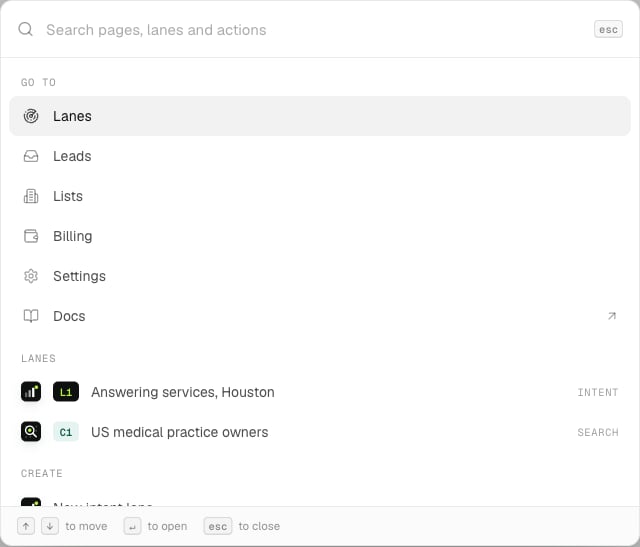
Type a page, a lane or something to create.
- Go to: Lanes, Leads, Lists, Billing, Settings and these docs. Type a settings tab, like “webhooks” or “API keys”, to go straight there.
- Lanes: every lane and website, by name or code.
- Create: a new intent lane, a new search, or a website (owners). In the organization: a new workspace.
Lanes
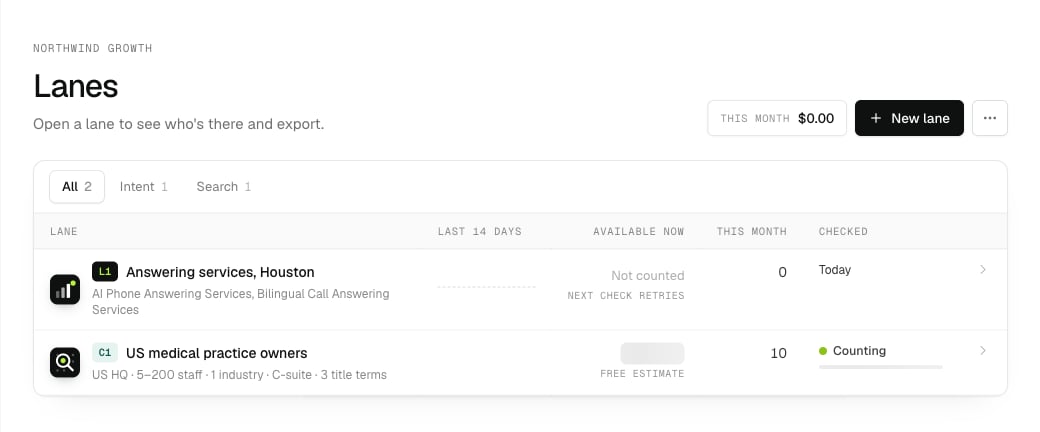
Lanes: what's available now in each lane, and what you've exported this month.
- New lane starts an intent lane, a search or a website.
- ⋯ → Check all intent lanes now re-counts them for free. Otherwise each lane is checked once a day.
- With two or more intent lanes, Export from all intent lanes runs one export across them, with each person once.
- The chip at the top shows your balance. In a client workspace, it shows what that workspace spent this month.
Leads
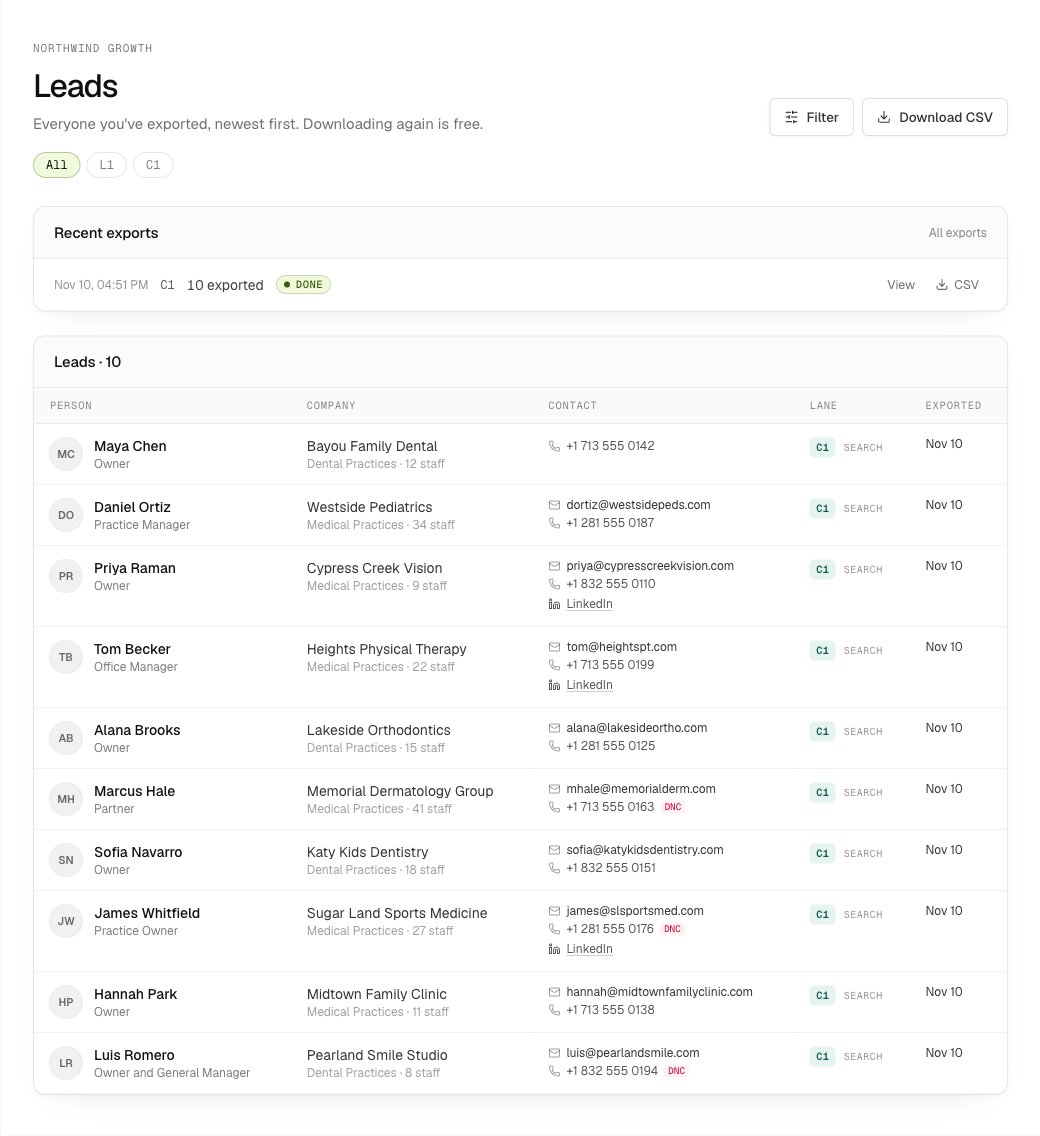
Leads: every export, and everyone you've exported.
- Recent exports lists each export with its status. View shows only its people, and CSV downloads them.
- The lane chips under the title filter by lane. Filter narrows by keyword matched, signal and export dates.
- Download CSV gets everyone shown. Downloading again is always free.
Lists
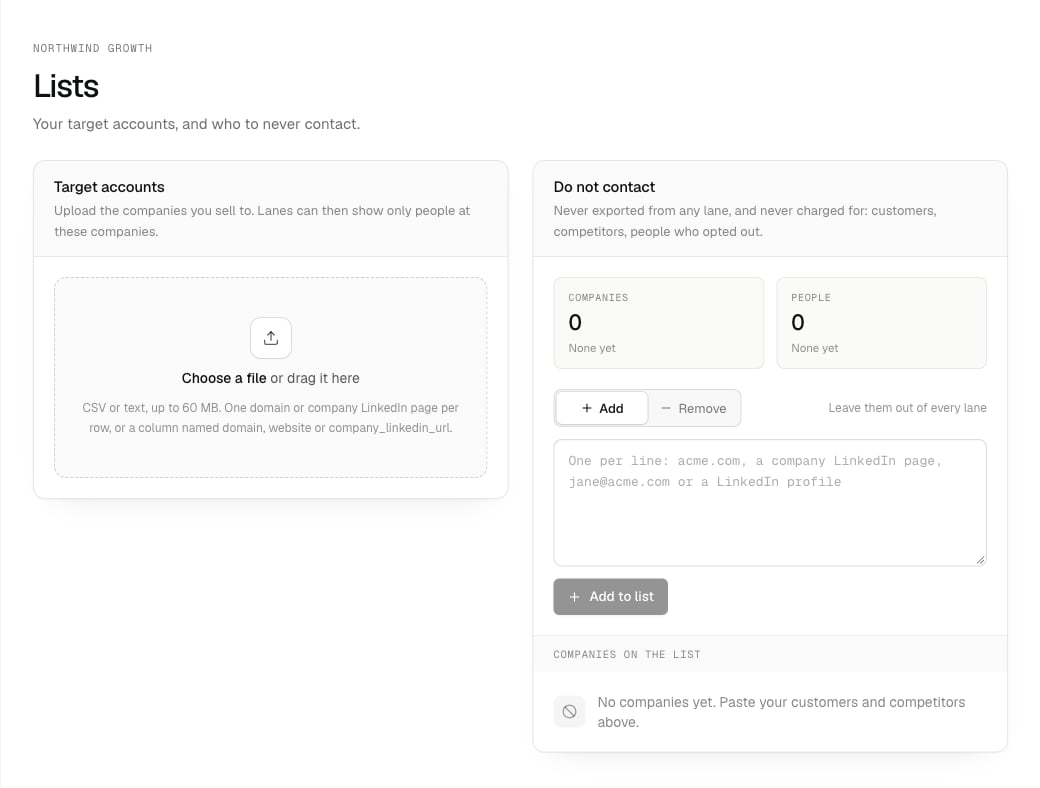
Lists: your target accounts, and who to never contact.
- Target accounts: drop in a CSV or text file of the companies you sell to, up to 60 MB, with one domain or company LinkedIn page per row, or a column named
domain,websiteorcompany_linkedin_url. Each lane decides on its Filters tab whether to use it. See Target accounts. - Do not contact: customers, competitors and people who opted out. Paste domains, company LinkedIn pages, emails or LinkedIn profiles, one per line. They’re never exported from any lane, and never charged for. See Leaving out companies and people.
Settings
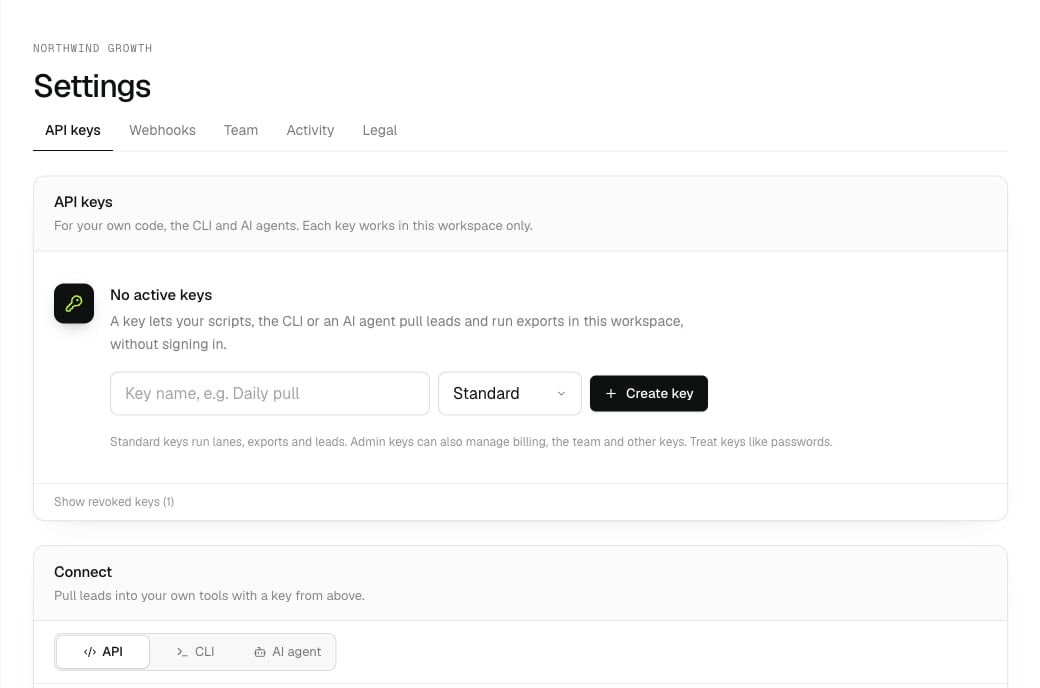
Settings in a workspace: API keys, Webhooks, Team, Activity and Legal.
- API keys: keys for your own code, the CLI and AI agents (the same key works as your MCP key). Connect below them has copy-and-paste setup for the API, the CLI and AI agents.
- Webhooks: endpoints for removal requests and website visitors. See Webhooks.
- Team: who can open the workspace, and invites. See Team.
- Activity: changes to lanes, lists, keys and billing, newest first.
- Legal: the agreements your organization has accepted.
On your phone
The dashboard works on a phone too: the menu and search sit at the top, and on a lane the count and the button stay in reach at the bottom.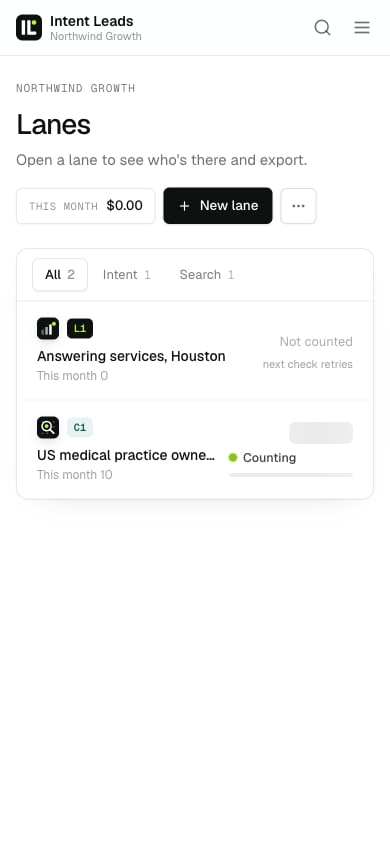
Lanes on a phone.
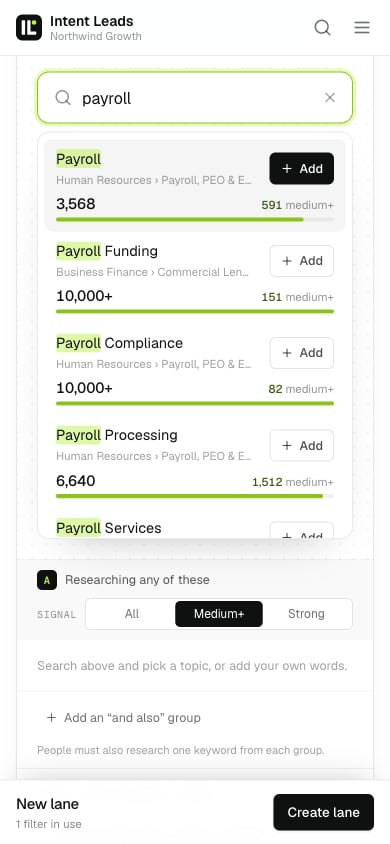
Picking keywords on a phone.